The DAZ Studio Layered Image Editor doesn’t get much attention, but it’s one of the more practical tools in the whole application. Most beginners spend weeks bouncing between Photoshop and DAZ — exporting textures, editing them externally, reimporting — without knowing there’s a layer system built right in. The LIE lets you stack texture edits directly onto your surfaces, control blending modes, adjust opacity, and see the result on your model without exporting anything. Your original texture files stay untouched the whole time. If you’d rather not spend months figuring out what works, the 3D Shards supporter membership gives you access to 120+ products and a library of resources from the start.
What the LIE Is and Why You Should Care
The Layered Image Editor is a panel inside DAZ Studio that connects a layer system — similar to Photoshop’s — directly to the material channels of your figures and props. You add layers on top of your existing textures without touching the original files. Every change stores inside the scene file. Your original skin or clothing textures stay exactly as they came. This is useful when you’ve paid for a character product and you’re not ready to start editing source files. The LIE isn’t a replacement for Photoshop on complex jobs — it’s a faster way to customize surfaces without the round-trip workflow. If you want to see how other people handle similar problems and get feedback on your own approach, the 3D Shards forum is where those conversations are already running.
How to Actually Open the Layered Image Editor
The LIE’s biggest usability problem is that it’s hard to find the first time. There’s no obvious “Open LIE” button anywhere in the main interface, and the documentation doesn’t exactly make it simple. Here’s the actual path, step by step. Do this once on a throwaway prop before touching anything important.
Step-by-Step: Your First Layer
- Select the figure or prop you want to edit in the Scene panel. Make sure it’s the active selection before you do anything else.
- Open the Surfaces panel. Window → Panes (Tabs) → Surfaces. Dock it somewhere you can always see it.
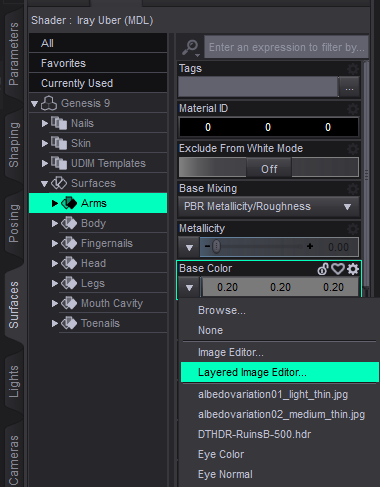
- Pick the right surface channel. If you’re using Iray, that’s Base Color. If you’re on 3Delight, it’s Diffuse. Getting this wrong is why layers sometimes seem to do nothing — you’re editing the right layer in the wrong channel.
- Click the thumbnail image next to that channel. A small pop-up appears. Don’t just swap the texture — look for the option to open it in the Layered Image Editor.
- Add a new layer. Hit the “+” button inside the LIE. You’ll see options for a color fill layer or an image layer. Start with whichever one fits what you’re trying to do.
- Load your PNG or set a color. For image layers: browse to your file. Use PNG or TIFF — not JPEG, which will cause problems with anything that has a transparent background.
- Choose a blending mode and drop the opacity to about 35%. Don’t start at 100%. Multiply works for most dark overlays, Color for tinting. You can push it higher later once you see what you’re dealing with.
- Hit Accept. The layer stack bakes and applies to the surface right there. You can come back to this same thumbnail any time and keep editing.
The first time through this will feel a bit slow and awkward. That’s fine — the interface is not the most intuitive thing DAZ has ever shipped. After two or three sessions it becomes quick, and you’ll stop thinking about the steps and start thinking about the result, which is where you want to be.
Blending Modes: The Short Version
Blending modes control how your layer interacts with everything below it. You don’t need to know all of them — in practice, three or four do most of the work. The rest show up rarely. The table below covers the ones that come up in regular DAZ work.
| Blending Mode | What It Does | Reach For It When |
|---|---|---|
| Normal | Covers whatever’s below, controlled only by opacity | You want a clean image overlay with no color interaction |
| Multiply | Darkens by multiplying pixel values together | Adding dirt, grime, wear, shadow — your most-used mode by far |
| Screen | Brightens using the inverse of Multiply’s logic | Glows, sheen, light bleed, brightening specific zones |
| Overlay | Dark areas get darker, light areas get lighter | Skin detail, punching up a flat or washed-out texture |
| Soft Light | Same idea as Overlay but less aggressive | When Overlay is too much — subtle warmth or contrast adjustments |
| Color | Shifts hue and saturation without touching brightness | Recoloring clothing, props, or accessories without washing out the texture |
| Luminosity | Applies only the brightness of the top layer | Brightening a surface without dragging in an unwanted color cast |
If you want a practical starting point: use Multiply for anything dark and weathered, Color for any hue shift, and leave the rest alone until you’ve got a feel for the first two. Overlay on skin textures is worth experimenting with because flat skin can look lifeless without a bit of contrast push — but start at 20% or you’ll overshoot it fast.
How the LIE Fits Into a Fillatoon Workflow
Filatoon is DAZ Studio’s cel-shading system built on the Filament real-time renderer. Where Iray goes for photorealism — subsurface scattering, physically-based reflections — Filatoon does the opposite. Flat color zones, sharp tonal edges, a look closer to illustration than photography. The LIE behaves differently here than it does in Iray. Because Fillatoon skips the complex lighting math that Iray uses under the surface, color-based layer adjustments hit harder and more consistently. A Color mode layer that barely registers in an Iray render can shift the whole palette of the same surface in Filatoon. That’s not a bug — the shader just responds more directly to what you put on top. In toon-style work, color carries more visual weight than in photoreal renders, so having that kind of direct control matters more. Multiply layers add good ink-line depth over Filatoon’s flat base colors — keep the opacity at 15–25% or it goes heavy quickly. Worth knowing: if you switch between Iray and Filatoon mid-project with LIE layers already applied, the layers carry over but the visual result changes because the underlying shaders are different. Plan for it. Some people use this on purpose — same scene, same character, same layer stack, two different render engines, two different moods. It works. If you want assets built with stylized and Filatoon workflows in mind, the 3D Shards store has downloadable resources worth a look.
Recommended products
-

Feline LIE Tattoos for G9
6.66 $ -
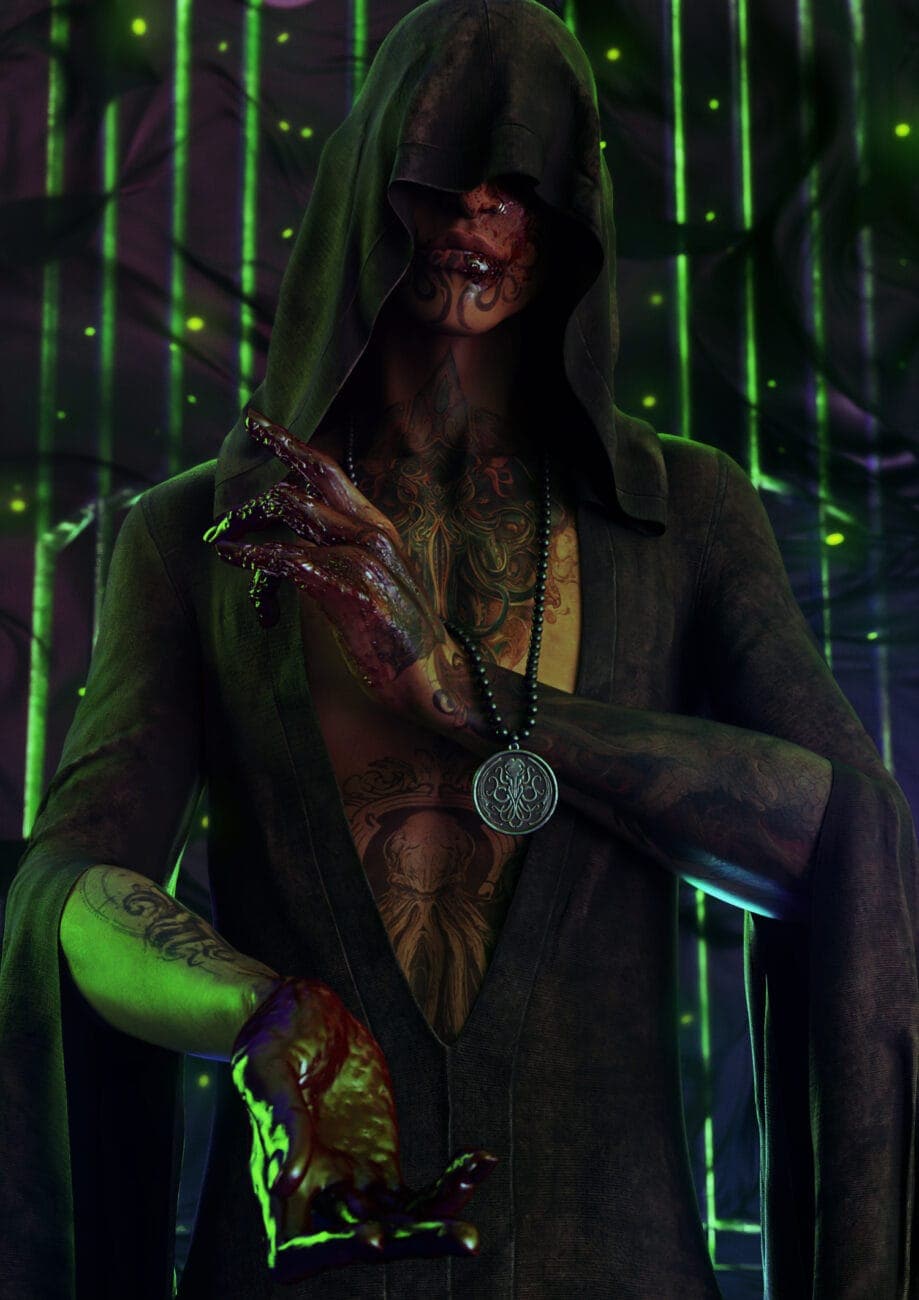
G9 Cultist Tattoos
6.66 $ -
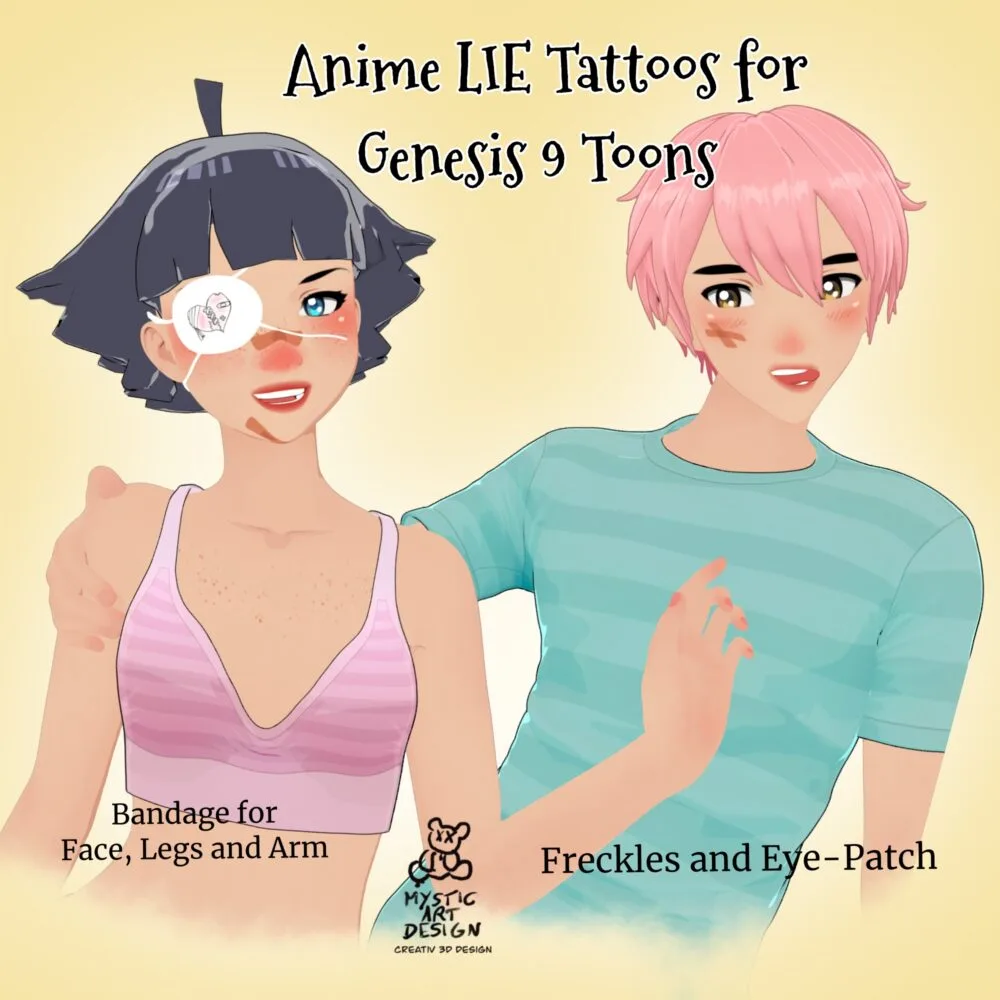
Anime LIE Tattoos for G9 Toon
4.99 $ -

Vibrant Fairy & Fantasy Tattoos for Genesis 8 Females
0.00 $ -
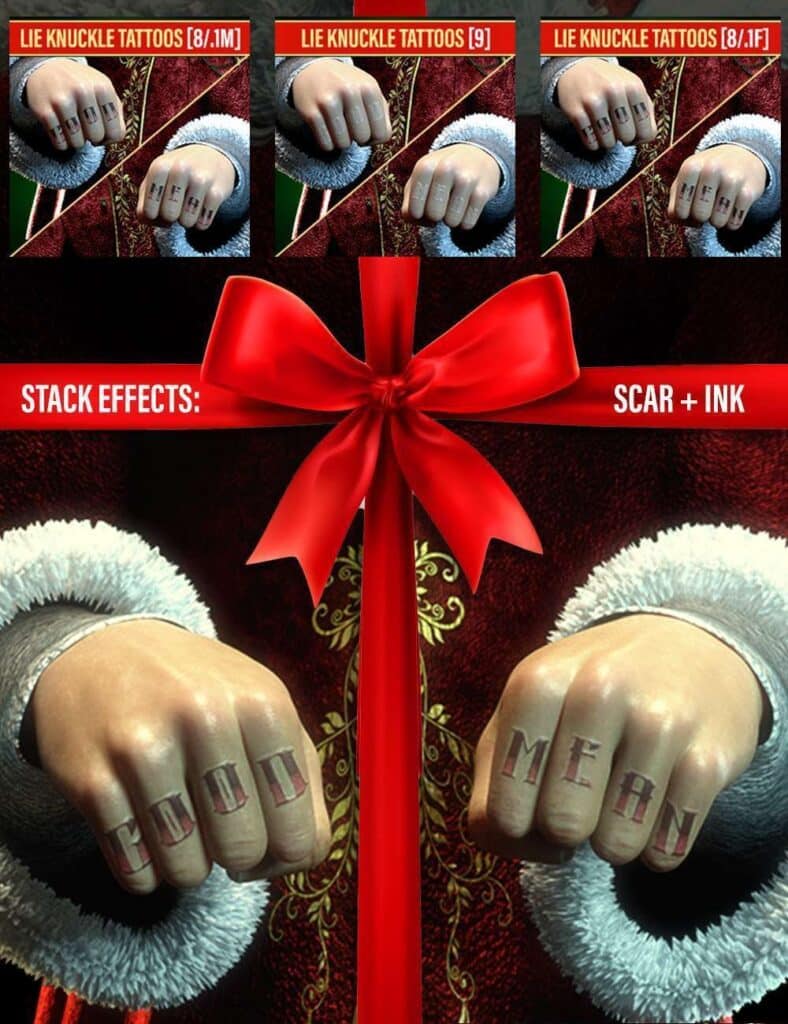
LIE Knuckle Tattoos for G8 & 9
0.00 $
Mistakes Almost Everyone Makes at First
The LIE doesn’t make many irreversible mistakes possible, but bad habits still slow you down. Here are the ones that come up most. Starting layers at 100% opacity is the main one. The results almost always look wrong — too heavy, too processed. Drop to 30–40% and push it up from there. Layering works by building up gradually, not by getting it right in one pass. Next: JPEG files for anything with transparency. JPEGs don’t have alpha channels. A tattoo or makeup overlay saved as JPEG carries a hard background that no blending mode will fully fix. Use PNG or TIFF for anything that needs a transparent background. The third issue is working in the wrong channel. If a layer does nothing at all, check whether you’re in Base Color (Iray) or Diffuse (3Delight). The UI won’t tell you — you have to check. And save after building a layer stack. The LIE data lives in the scene file, not in a separate document. Losing an hour of work to an unsaved session is unpleasant in a very specific way. For practical render knowledge that covers this kind of thing in more depth, the 3D Shards blog is worth bookmarking.
Frequently Asked Questions
Is the LIE free or do I need a paid upgrade?
It’s completely free and built into the standard DAZ Studio installation. No plugins, no paid tiers, no surprises. Open DAZ Studio, load anything with a surface, go to the Surfaces panel, and it’s there.
What image formats work in the LIE?
PNG, TIFF, BMP, and JPG all load without issues. For anything that needs a transparent background — tattoos, overlays, decals, makeup — stick to PNG or TIFF. JPEG doesn’t support transparency, and the solid background it carries will not blend out cleanly regardless of which mode you use.
Does it work with Fillatoon and the Filament renderer?
Yes, and it works well. Filatoon uses flat color zones and hard tonal edges rather than physically-based shading, so LIE color adjustments land harder and more predictably than they do in Iray. Color and Multiply modes are especially useful for toon-style palette control and adding depth to cel-shaded surfaces without pushing into photoreal territory.
Do my layers save when I close DAZ Studio?
Yes — the full layer stack is stored inside the .duf scene file. When you reopen the scene, everything comes back as you left it. The only thing that breaks this is if you’ve moved or deleted the original texture files the layers were referencing. DAZ won’t find them, and those layers will show up broken.
How many layers before things start slowing down?
There’s no hard limit built into the LIE, but complex figures with many surface zones will start feeling sluggish once the layer count climbs. For most everyday work, two to five layers per surface is a reasonable ceiling — enough to do real customization without making the scene uncomfortable to work in.
What’s the difference between a color fill layer and an image layer?
A color fill layer puts a flat solid color over the surface at the opacity and blend mode you choose. An image layer loads a file — PNG, TIFF — and applies it with all its detail and transparency. Color fills for tinting and hue shifts; image layers for anything with actual visual content or a transparent background.
Does the LIE mean I can stop using Photoshop?
For most scene work, yes. If you need to build complex procedural textures, do full UV painting with layered masks, or output to multiple maps simultaneously, Photoshop or Substance Painter will still do things the LIE can’t. But for clothing recolors, character detail layers, prop weathering, and Filatoon palette work, the LIE handles it without any extra software.
Can I use it on props and environments, not just characters?
Yes, and it’s one of the more underused applications. A single dirt layer at 20% Multiply on a floor, wall, or piece of furniture does more to ground a scene than almost any other quick edit. Same workflow, works on any surface.