
At some point, almost every DAZ Studio artist runs into the same problem. You want your character to look like they just stepped out of the rain. Or you want a tattoo that actually sits on the skin properly. Or you want that faint magical glow wrapping around the figure without blowing up your entire shader setup. You mess around with the surface settings, nothing quite works, and eventually you go looking for a different approach. DAZ Studio Geometry Shell is that approach. It wraps an invisible second copy of the figure’s mesh around the original — with its own completely independent materials — so you can add wet skin, oily coatings, tattoo overlays, auras, and a dozen other effects without touching the original character’s shader at all. This tutorial covers how Geometry Shell actually works, how to add and set one up from scratch, and the specific settings that trip up almost every beginner the first time. If you are trying to get a specific effect working and the settings are fighting you, send us what you are working on and let us take a look — these surface layering problems are nearly always faster to solve with the actual scene visible.
What Is a Geometry Shell in DAZ Studio?
A Geometry Shell is a second copy of a figure’s mesh that DAZ Studio generates automatically, sitting just outside the surface of the original. Think of it as a second skin worn over the top of the character — one that follows every curve and morph of the figure beneath it but has its own completely separate material zones. You apply shaders and textures to the shell however you want, and none of that touches the original character’s surfaces. The shell tracks the figure’s morphs automatically. If the character has HD morphs active, the shell follows those. If the character is using dForce clothing, the shell stays out of the way.
The thing that trips people up when they first hear about it: a Geometry Shell is not a prop, not something you model, and not an external object you import. DAZ Studio builds it from the figure’s existing geometry on the spot. You can shell a figure, a piece of clothing, or a prop. The shell inherits the base object’s UV layout, which means textures that work on the original sit in exactly the right place on the shell too — no manual alignment, no guesswork. That automatic UV matching is what makes overlay effects so clean. You load an opacity map and it sits exactly where it should.
What You Can Actually Use Geometry Shell For
The short answer is: more than you probably expect. Once you understand what the shell is doing, you start seeing possibilities everywhere. But it helps to know the main categories upfront, because the settings you reach for depend entirely on what kind of effect you are going for.
Wet skin, sweat, and surface coatings
This is probably the first thing most people try with Geometry Shell, and it is the one that produces the most immediately satisfying result. You add a shell, give it a highly specular near-transparent shader, offset it a tiny amount from the surface, and suddenly your character looks like they just walked out of a rainstorm. The key is that the shell handles the wet look entirely on its own — the original skin texture stays completely unchanged underneath. You can dial the specular roughness up for an oily look, down for a clean water sheen, and adjust the Cutout Opacity anywhere between a light sweat and a full drench. The control is genuinely precise once you know which values to move.
Tattoos, scars, and texture overlays
Adding a tattoo to a character you did not build from scratch is one of those things that sounds simple until you try it. Painting on the original skin texture works but it is destructive — you cannot adjust or remove it later without reloading the original. A Geometry Shell sidesteps all of that. You apply the shell, load your tattoo artwork as a greyscale opacity map into the Cutout Opacity channel, and only the dark pixels of the artwork remain visible — the rest of the shell is transparent and the skin shows through. Because the shell uses the same UV layout as the figure, the placement is correct without any manual positioning. A scar overlay works the same way, just with a slightly different specular response to suggest raised or recessed skin texture. If you need opacity maps that are already set up for this kind of shell workflow, there are ready-to-use overlay assets in the catalog rather than building the textures yourself.
Sequin and fabric overlays on clothing
This is one of the more creative applications of Geometry Shell, and it is one that most artists do not think of until they see it in action. Instead of applying the shell to a character’s skin, you apply it to a clothing item — and then give the shell a highly specular, tiled material that simulates the look of sequins, glitter, metallic fabric weave, or any other surface texture that sits on top of a garment rather than being part of it. The result is a sparkle effect that responds correctly to the scene’s lights in Iray, catches highlights from different directions as the camera or lights move, and does not require any changes to the clothing’s original material. Sade — one of the artists publishing through 3D Shards — released a dedicated sequin shader set built specifically for this workflow: Sequin GeoShell Shaders applies directly to a Geometry Shell over a clothing item and gives you a complete range of sequin types, sizes, and light response presets without having to build the shader from scratch. If you have ever tried to fake sequins using a texture on a clothing surface and found the result too flat, this approach — shell on clothing, specular tiled overlay — is the reason it looks so much better.
-
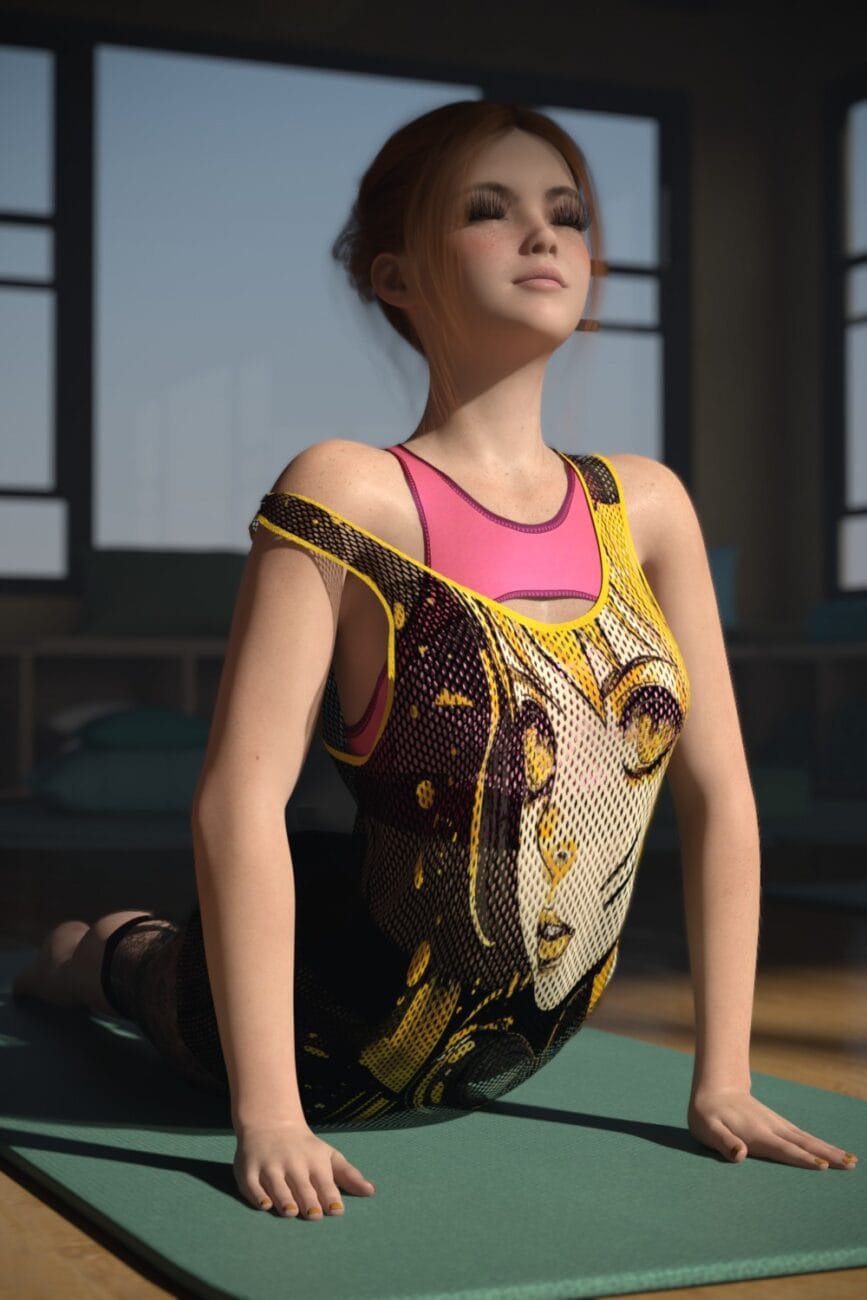
Geo Underwear for G9
5.99 $ -
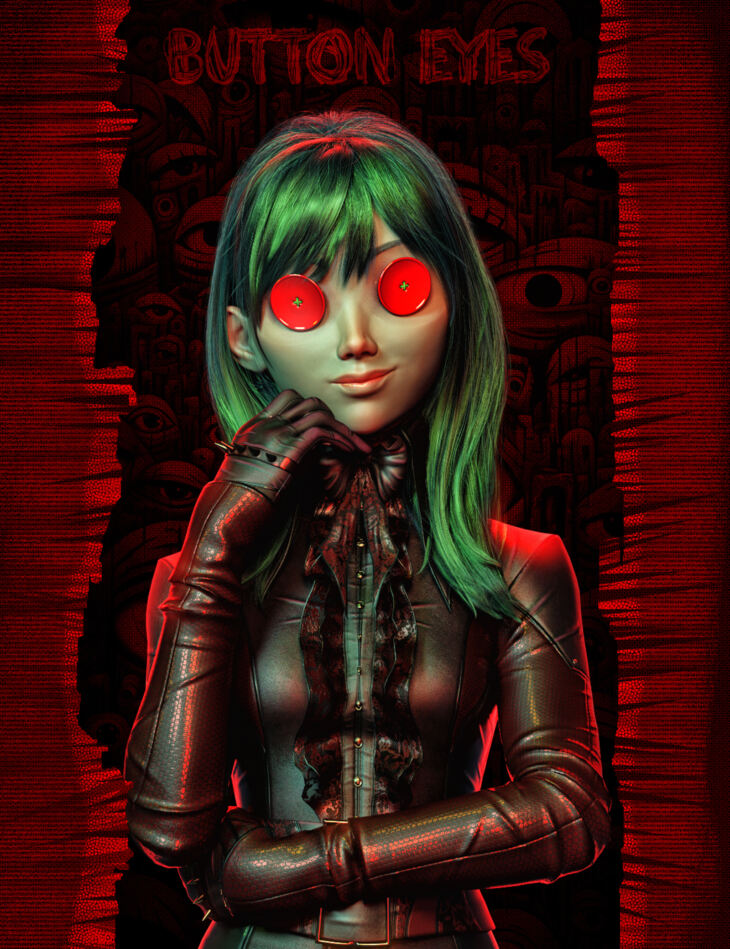
FPE Free Button Eyes for Genesis 9 – Whimsical & Creepy Character Accessory
0.00 $ -
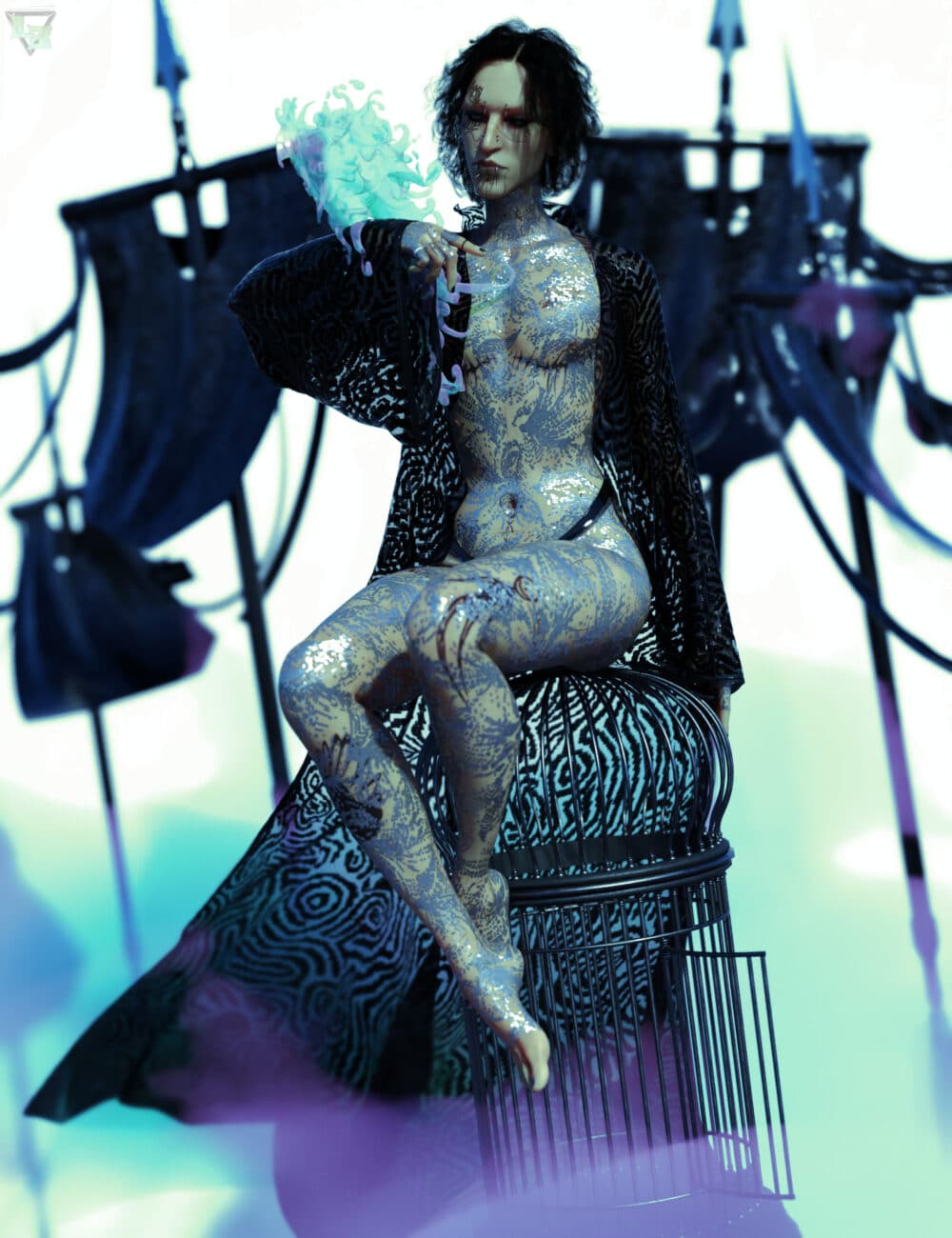
Sequin Geoshell Shaders
9.99 $ -
Sy Geoshell Veins for Genesis 8 & 8.1
Original price was: 11.95 $.9.95 $Current price is: 9.95 $.

Glow, aura, and magical effect layers
For magical effects, Geometry Shell is practically designed for it. You offset the shell further from the surface so it floats visibly above the figure, set the Cutout Opacity very low, and enable Emission so the shell generates its own light. The result is a semi-transparent glowing layer that wraps the character like an energy field. Iray handles emissive shells correctly — the glow can actually illuminate the character underneath it if you push the emission value high enough, which means you can skip the separate light rig and let the shell do the atmospheric work. This is one of those techniques where the first time it clicks in the render you immediately start thinking of five other scenes to try it on.
How to Add and Set Up a Geometry Shell
The actual process is short. The option is buried in a submenu that most people walk past without noticing, which is probably why so many artists do not find Geometry Shell until they go looking for it specifically. Here is exactly where it is and what to do with it.
Step 1: Select the figure or item you want to shell
In the Scene pane, click the figure’s top-level node — the one with the character’s name at the root of the hierarchy, not a body part below it. This matters more than it sounds. If you accidentally click a child node (a hand, a head, an arm), DAZ Studio may create the shell for only that section of the figure’s geometry, and you will spend a confusing ten minutes wondering why half the character is missing its shell. The top-level figure node is the safe selection.
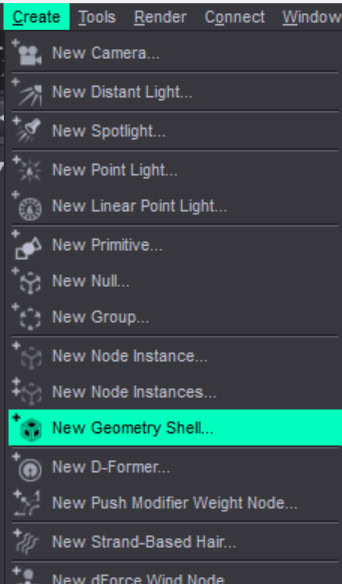
Step 2: Apply the Geometry Shell from the Edit menu
Create – New Geometry Shell. DAZ Studio generates the shell immediately and drops it as a child node under the figure in the Scene pane. At this point most beginners do a quick render to check and see absolutely no change — because the shell has copied the original figure’s materials and looks identical to it. That is normal. The shell exists and is working. You just have not told it to look different yet. The next two steps are where it actually becomes useful.
Step 3: Set the Offset value
Select the Geometry Shell node in the Scene pane and open the Parameters pane. The Offset value is usually under General or Shell properties. It controls how far the shell floats above the original surface in DAZ Studio’s internal units — roughly centimetres at default scale. For wet skin or sweat, keep it small: 0.001 to 0.005 is usually enough to prevent the surfaces from fighting each other while staying close enough that the effect reads as being on the skin rather than above it. For an aura effect, go bigger — 0.02 to 0.1 or more depending on how much separation you want. If you see flickering patches in the render where the shell and the original surface are competing for the same space, the offset is too low. Nudge it up slightly and the artefact goes away.
Step 4: Configure the shell’s materials
Select the Geometry Shell node and open the Surfaces pane. You will see the same material zones as the original figure, but these belong to the shell — any change here has zero effect on the character underneath. For a wet skin effect, set Base Colour to near-black (you want almost no diffuse contribution), Specular Weight to 0.9 or 1.0, Specular Roughness to 0.05 to 0.1, and Cutout Opacity to somewhere between 0.3 and 0.6. For a tattoo, leave everything else minimal and load your artwork as a greyscale image into the Cutout Opacity channel — the white parts of the image are visible, the black parts are transparent. For an aura, pick your glow colour as the Base Colour, enable Emission, set Emission Colour to match or lighten the base, push Emission Strength to 2.0 to 10.0 depending on how intense you want it, and set Cutout Opacity to 0.1 to 0.3 so the shell reads as translucent rather than solid.
Step 5: Test with a quick Iray preview render
Switch to Iray preview mode in the viewport and let it run for 200 to 500 iterations — enough for the shell effect to resolve clearly without waiting for a full render. The two most common problems at this stage: the shell is too opaque (lower the Cutout Opacity), or the shell is invisible (specular or emission needs to go up). The genuinely useful thing about this step is that DAZ Studio updates the Iray preview in real time as you change surface values. You can keep the preview running, adjust Specular Roughness or Cutout Opacity in the Surfaces pane, and watch the effect change immediately. Dialling in the look this way is far faster than running test renders one at a time.
Geometry Shell Settings That Confuse Beginners
A handful of settings in the Geometry Shell workflow trip people up almost every time. Worth knowing about these before you hit them mid-render at midnight.
Visible in Render vs Visible in Viewport. These are separate toggles in the Parameters pane and they do not affect each other. If your shell is showing up in the viewport but vanishing in the final Iray render, Render visibility is turned off. This is easy to do accidentally when you are tidying up your Scene pane. Check it before assuming something is broken with the materials. The reverse is also useful intentionally — hiding the shell in the viewport so it does not get in the way while you are posing and lighting, while keeping it active for the actual render.
SubD follows the base figure. The shell subdivides with the base figure. If the figure is at SubD 2, the shell is also at SubD 2. At high SubD levels with HD morphs active, the shell follows every fine detail of the subdivided surface — which is exactly what you want for close portrait wet skin renders, but it also means the shell is adding meaningful geometry to your scene’s render load. In a multi-character scene where VRAM is getting tight, reducing SubD on shells for background characters is one of the first places to look.
Opacity map direction. This one gets almost everyone the first time. If you load a tattoo artwork — dark lines on a white background — as a Cutout Opacity map, the result is the opposite of what you want: the white background is opaque and the tattoo lines are transparent. Cutout Opacity works on the principle that white means visible and black means transparent. Before loading the map, invert it in an image editor so the artwork is white on a black background. Alternatively, use the Invert toggle directly in the DAZ Studio texture channel settings, which saves you the round-trip to the image editor.
Z-fighting on extreme morphs. With certain body morphs — particularly heavy weight morphs or extreme stylised proportions — parts of the geometry become concave, and a low-offset shell can push through the original surface at those areas. The render flickers between the shell material and the original skin depending on the camera angle. Increasing the Offset value is the fix. Sometimes you end up with a larger offset than looks ideal, in which case lowering the Cutout Opacity slightly compensates by making the shell less visually prominent at the increased distance.
Geometry Shell: Recommended Starting Settings by Effect Type
| Effect | Offset | Cutout Opacity | Specular Weight | Specular Roughness | Emission |
|---|---|---|---|---|---|
| Wet skin / sweat | 0.001 – 0.005 | 0.3 – 0.6 | 0.9 – 1.0 | 0.05 – 0.1 | Off |
| Heavy rain / drenched | 0.002 – 0.008 | 0.5 – 0.8 | 1.0 | 0.02 – 0.06 | Off |
| Oil / grease coating | 0.001 – 0.004 | 0.4 – 0.7 | 0.85 – 0.95 | 0.08 – 0.15 | Off |
| Tattoo overlay | 0.001 – 0.003 | Opacity map | 0.1 – 0.3 | 0.3 – 0.5 | Off |
| Scar overlay | 0.001 – 0.003 | Opacity map | 0.05 – 0.2 | 0.4 – 0.7 | Off |
| Magical aura (subtle) | 0.015 – 0.04 | 0.1 – 0.25 | 0.0 | 0.0 | 2.0 – 5.0 |
| Magical aura (strong) | 0.04 – 0.12 | 0.2 – 0.5 | 0.0 | 0.0 | 6.0 – 15.0 |
| Ice / frost surface | 0.003 – 0.01 | 0.5 – 0.75 | 0.7 – 0.9 | 0.2 – 0.4 | Off |
Mistakes That Are Easy to Make With Geometry Shell
Most Geometry Shell problems are not technical mysteries. They are the same four or five things, repeated by different artists at different points in their first session with the feature.
Selecting a child node instead of the figure root. If you click a body part in the Scene pane — a hand, an arm, a head — and create a shell from there, DAZ Studio may build the shell for only that section. You end up with a partial shell that covers one limb but not the rest of the figure, which looks exactly like a bug but is actually just the wrong selection. Always expand the Scene pane hierarchy, find the top-level figure node, and select that before going to Edit → Geometry → Create Geometry Shell.
Rendering immediately after creating the shell and seeing nothing. The shell is there. It is working. It is just wearing the same clothes as the character underneath, so it looks identical. New Geometry Shell nodes always copy the original figure’s materials. Nothing will change in the render until you go into the Surfaces pane with the shell selected and change the settings. This is not a bug. It just feels like one.
Using standard Opacity instead of Cutout Opacity for overlays. Standard Opacity blends the surface with whatever is behind it using standard alpha blending, which produces soft transparent edges but can also produce unexpected results with Iray’s material system. Cutout Opacity is a harder threshold — pixels are either fully there or fully gone based on the map value. For tattoo and scar overlays, Cutout Opacity produces much cleaner results. If you are seeing semi-transparent fringing around the edges of an opacity-mapped shell, this is usually the cause.
Cranking emission to 20 and watching the render blow out. High emission values on a semi-transparent shell can produce areas of the render that are simply blown out to pure white — particularly in the first fifty Iray samples before the renderer has had time to resolve the high-energy paths. Start low: 1.0 to 3.0 is a reasonable starting point for most aura effects. Run the Iray preview before going higher. An aura that needs a boost is easier to add in post-processing than a render that is overexposed everywhere the shell intersects the camera’s view.
Frequently Asked Questions About Geometry Shell in DAZ Studio
Does Geometry Shell work with dForce clothing?
Yes, and it stays out of the way. A shell applied to the figure does not participate in the dForce simulation — it just follows the figure’s settled pose after the simulation is done. You can also apply a shell to the dForce clothing item itself if you want to add a surface effect to the fabric, but that shell will not simulate either. It tracks the clothing’s morphed and posed geometry after the fact.
Can I apply multiple Geometry Shells to the same figure?
Yes. Each additional shell is a separate child node with its own materials and offset value. Stacking a close wet skin shell and a floating aura shell on the same character at the same time is completely valid, and the two effects do not interfere with each other. The practical limit is VRAM — every shell adds a copy of the figure’s geometry to the render data. On a complex scene with high-poly figures this adds up faster than you might expect, particularly at higher SubD levels.
Why does my Geometry Shell disappear in the render even though it is visible in the viewport?
Nine times out of ten, Render visibility is turned off in the Parameters pane. It is a separate toggle from viewport visibility and easy to hit by accident. Check that first. If Render visibility is on but the shell still does not appear in the Iray output, check Cutout Opacity — a value of 0.0 makes the shell completely transparent to Iray even though the OpenGL viewport shows it. Raise Cutout Opacity to something above zero and it will reappear.
Can Geometry Shell be used on Genesis 8 and Genesis 9 figures?
Yes. It works on Genesis 3, Genesis 8, Genesis 9, and older figures without any generation-specific adjustments. It also works on clothing items, props, and hair nodes. The only real requirement is that the object has geometry DAZ Studio can read. Standard DAZ content works without issues across all figure generations.
Why does the wet skin shell look right from one angle but wrong from another?
The offset is too low for the figure’s current morph state. From certain angles, concave areas of the geometry push back through the offset distance and cause Z-fighting — the render flickers between the shell material and the original skin. Increase the Offset value in small increments until the artefact disappears. Usually 0.001 to 0.002 more than your current value is enough. On figures with extreme proportional morphs, you may need to go higher.
Does the shell follow HD morphs and SubD correctly?
Yes, and this is one of the things that makes Geometry Shell genuinely impressive for close portrait renders. At SubD 2 or higher with HD morphs active, the shell follows the full subdivided surface including every pore and fine skin detail. At SubD 0 or 1 it follows the base mesh only. So a wet skin shell on a G9 hero character at SubD 2 will conform to the actual micro-geometry of the skin, not a smoothed approximation of it. It is one of the reasons the effect looks so good at close render distances.
Can I save a Geometry Shell setup as a preset?
Partially. You can save a Materials Preset from the Surfaces pane, which captures all the shader settings. What it does not capture is the Geometry Shell node itself or its Offset value. For a fully self-contained setup, save a scene subset that includes the shell node — this gives someone else (or future you) everything needed to reproduce the effect without rebuilding it from scratch.
Why does the shell add so much render time?
Because Iray has another surface to trace rays against. For a basic specular shell, the overhead is small. The render time really climbs when you enable Emission, because emissive surfaces need substantially more samples to resolve cleanly — especially in enclosed or dark scenes where the shell’s emission is one of the primary light contributors. If a glowing shell is adding too much time, the practical workaround for still renders is to pull the emission down, render without the aura, and add the glow in post-processing. For questions about render time management more broadly, the Iray settings guide covers the most effective places to look.
Further Reading and Related Resources
- DAZ Studio Iray Settings Guide: Every Parameter Explained for Beginners — render settings, VRAM, denoising (3D Shards Blog)
- How to Make Realistic Characters in DAZ Studio — skin shaders, morphs, eyes, and hair (3D Shards Blog)
- G9 Technical Settings: dForce, SubD, and Iray Skin Shader Values — companion guide for Genesis 9 (3D Shards Blog)