

Overview
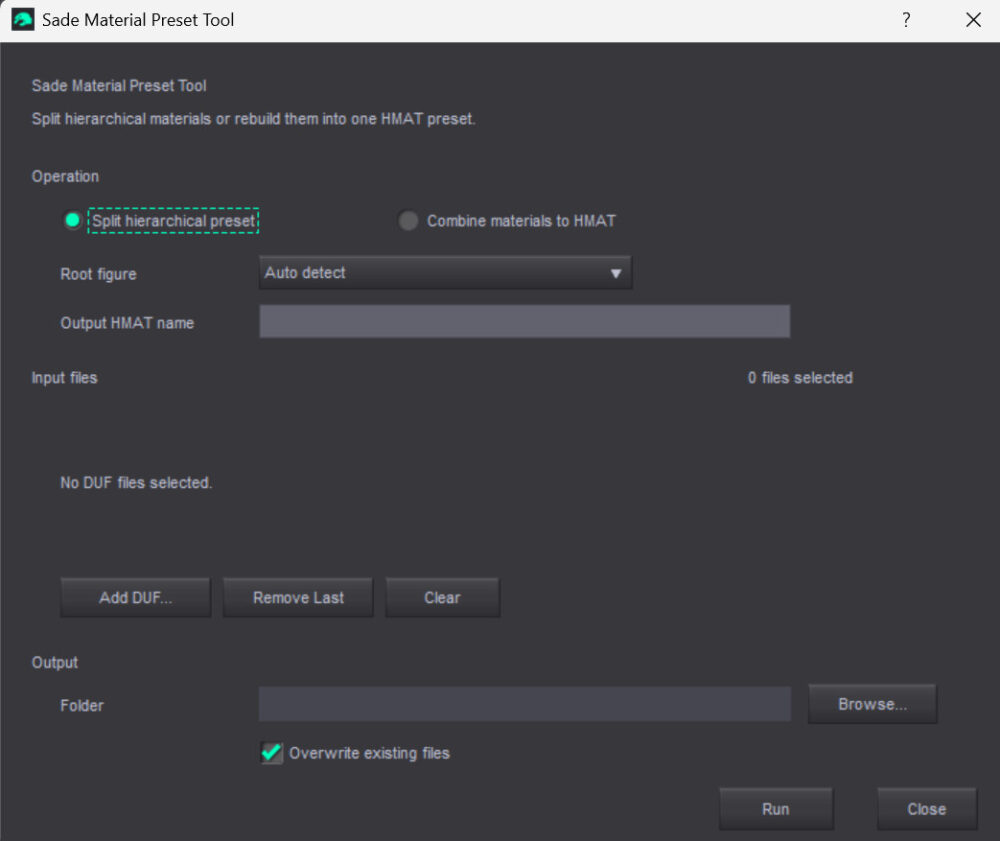
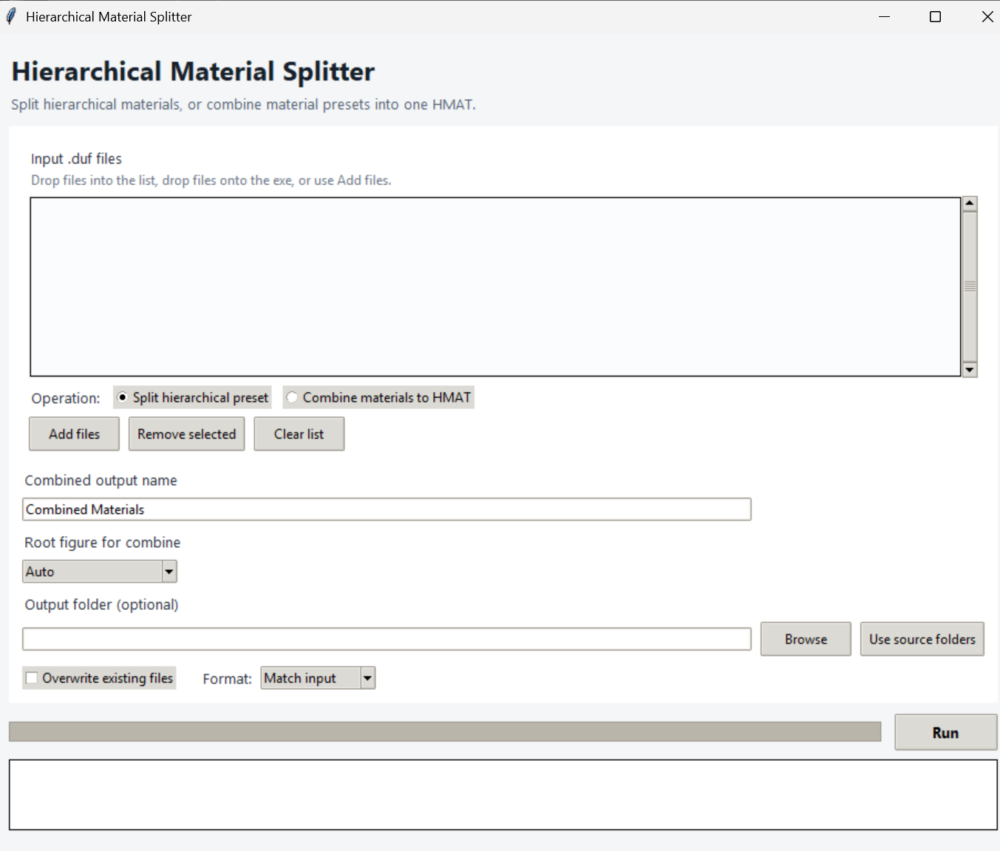
Sade Material Preset Tool is a Windows utility for DAZ Studio creators who work with .duf material presets. It helps split large hierarchical material presets into smaller per-item presets, and it can combine separate material or HMAT presets back into one hierarchical material preset.
The tool was created for real DAZ Studio production work, where outfits often contain many clothing items, mirrored parts, child props, buttons, straps, ornaments, shoes, buckles, jewelry, or other nested elements. Manually saving every material preset can become slow, repetitive, and easy to get wrong. Sade Material Preset Tool helps make that final packaging stage more consistent.
What The Tool Does
Sade Material Preset Tool has two main workflows:
- Split hierarchical preset: takes one full hierarchical material preset and creates separate material/HMAT files for the items inside it.
- Combine materials to HMAT: takes separate material or HMAT files and rebuilds them into one combined hierarchical material preset.
Simple items can be saved as regular preset_material files. Items that include child nodes are saved as preset_hierarchical_material files so DAZ Studio can still target the full item structure.
Key Features
- Split full outfit HMAT files into individual item presets.
- Keep child nodes grouped with their parent item.
- Combine separate material presets back into one HMAT.
- Support Genesis 9, Genesis 8 Female, Genesis 8 Male, Auto Detect, or no root in combine mode.
- Preserve repeated surface names on duplicated or mirrored items.
- Support common left/right item workflows such as boots, gloves, earrings, garters, and accessories.
- Avoid DAZ duplicate-ID output problems by writing cleaner generated IDs.
- Use either the standalone Windows app or the DAZ Studio Script launcher.
- Work with drag-and-drop in the standalone app.
- Save output beside the source files or into a custom output folder.
Included Files
Typical release package contents :
- SplitHierarchicalMaterials.exe or branded Sade executable
- Sade_Material_Preset_Tool_DAZ.dsa
The DAZ launcher .dsa file must stay in the same folder as the executable unless the user manually locates the executable when prompted.
Requirements
- Windows 10 or newer
- DAZ Studio content in .duf format
- DAZ Studio for testing and applying generated presets
Installation
Standalone App
Place the executable anywhere convenient and run it directly.
DAZ Studio Launcher
Place these files in the same folder:
Sade_Material_Preset_Tool_DAZ.dsa SplitHierarchicalMaterials.exe
Recommended DAZ content location:
Documents/DAZ 3D/Studio/My Library/Scripts/Sade/Sade Material Preset Tool/
Then open it in DAZ Studio from:
Content Library > DAZ Studio Formats > My Library > Scripts > Sade > Sade Material Preset Tool
You can also run it with:
Scripts > Run Script...
Split Mode
Use split mode when you already have a full hierarchical material preset and want separate presets for the individual clothing items or props.
Example input:
All 01.duf
Example output:
All 01 - Jacket.duf All 01 - Shirt.duf All 01 - Pants.duf All 01 - Boot Left.duf All 01 - Boot Right.duf
If an item has child nodes, the tool keeps those children with the parent item. For example, a vest with buttons remains one HMAT file instead of becoming disconnected material files.
Combine Mode
Use combine mode when you have several separate material or HMAT presets and want to build one all-in-one hierarchical material preset.
Recommended steps:
- Select Combine materials to HMAT.
- Add the material or HMAT .duf files.
- Enter the output HMAT name.
- Choose the root figure if needed.
- Choose an output folder.
- Run the tool.
- Test the generated HMAT in DAZ Studio.
Root Figure Selection
Combine mode supports:
- Auto detect
- Genesis 9
- Genesis 8 Female
- Genesis 8 Male
- None
Use Auto detect when the source files contain enough hierarchy information. Choose a manual root when rebuilding an HMAT from plain material presets or when DAZ Studio needs a specific figure root.
Sade Material Preset Tool FAQ
What is Sade Material Preset Tool?
Sade Material Preset Tool is a Windows utility for DAZ Studio creators. It splits large hierarchical material presets into smaller item presets and can combine separate material or HMAT presets back into one HMAT.
Is it a DAZ Studio plugin?
Not exactly. It is a standalone Windows application with a DAZ Studio Script launcher. The launcher opens from inside DAZ Studio, but the actual conversion is handled by the executable.
Why use a DAZ Script launcher instead of a compiled plugin?
A DAZ Script launcher is easier to install, easier to update, and less dependent on DAZ SDK plugin builds. It gives users a DAZ-native entry point without the overhead of a compiled C++ plugin.
What is split mode?
Split mode takes one hierarchical material preset and creates separate output files for the items inside it. Simple items can become regular material presets. Items with child nodes remain HMAT files.
What is combine mode?
Combine mode takes separate material or HMAT presets and builds one combined hierarchical material preset from them.
What root figures are supported?
Combine mode supports Auto Detect, Genesis 9, Genesis 8 Female, Genesis 8 Male, and None.
When should I use Auto Detect?
Use Auto Detect when the source files already contain enough hierarchy information. This is usually best for files created by the splitter or files that already include clear node data.
When should I choose a root manually?
Choose a manual root when combining plain material presets or when the generated HMAT needs to target a specific figure. Use Genesis 9 for Genesis 9 products, Genesis 8 Female for G8F products, and Genesis 8 Male for G8M products.
Does the tool convert materials between Genesis figures?
No. Root selection does not convert materials between figures. It only helps the generated HMAT target the correct scene hierarchy.
Does it support child nodes?
Yes. If an item has children, such as buttons, buckles, straps, rings, or ornaments, the tool can keep those child nodes grouped with the parent item.
Why do some outputs become HMAT files?
Items with child nodes need hierarchical material presets so DAZ Studio can target both the parent item and its children. Simple items can often use regular material presets.
Does it support left and right boots or gloves?
Yes. The tool is designed to handle repeated or mirrored items, including left and right boots, gloves, earrings, garters, and similar accessories.
What if two items have the same surface names?
That is common in DAZ products. The tool can preserve repeated surface names while still targeting the correct item nodes.
Does it edit texture files?
No. The tool edits .duf preset structure only. It does not modify texture images.
Does it include any DAZ assets?
No. It does not include DAZ Studio, DAZ SDK files, figures, clothing, shaders, textures, or third-party product assets.
Can I use it for commercial products?
Yes, it can be used in commercial DAZ Studio production workflows. You must still have the rights to distribute or reference the underlying product assets, textures, and shaders.
Do generated presets need testing?
Yes. Always test generated presets in DAZ Studio before release. Check mirrored items, child nodes, props, and full outfit presets.
What should I do if DAZ shows an error opening a generated file?
Check the DAZ Studio log. Also confirm that the correct figure and product items are loaded, and that the original product assets and textures are installed.
Why does the DAZ launcher need the executable beside it?
The launcher looks for the executable in the same folder. Keeping both files together makes installation easier and avoids path problems.
Can I rename the executable?
Yes, but the DAZ launcher must be updated to look for the new executable name. If the names do not match, the launcher will ask you to locate the executable manually.
What should I send with a support request?
Send your DAZ Studio version, Windows version, operation mode, root figure choice, input files, generated output, screenshot of the issue, and DAZ Studio log excerpt.
1.1 Version
Changelog
Added
- Added optional Target nodes for plain materials support in Combine mode.
- Added –target-node CLI argument.
- Added DAZ launcher support for target node mapping.
- Added support for mapping multiple input material presets to the same target node.
Changed
- Combine mode no longer blindly relies on the material preset filename as the scene node target.
- Plain material presets now try safer target inference from material geometry or material target data before falling back to the filename.
- When explicit target nodes are provided, generated HMAT nodes use those real target names.
- Reused target nodes are now merged instead of duplicated.
- Generic #geometry from plain material presets is no longer used as a misleading HMAT geometry target.
- The standalone app title was restored to Sade Material Preset Tool.
Fixed
- Fixed invalid HMAT output where files such as Skirt_Mat_01.duf, Sleeves_Mat_08.duf, and Flowers_Mat_01.duf were incorrectly turned into fake scene nodes.
- Fixed cases where DAZ Studio reported:
- Invalid hierarchy for selected node(s)
- preset_hierarchical_material type; no root(s) found
- Fixed combine workflows where several plain material presets should apply to the same item, such as:
- Dress, Sleeves, Dress
- Reduced duplicate-ID related load problems caused by incorrect node generation.
Usage Note
For plain material presets in Combine mode, enter target nodes in the same order as the input files.
Example:
Add to chat
Inputs: Skirt_Mat_01.duf Sleeves_Mat_08.duf Flowers_Mat_01.duf Target nodes: Dress, Sleeves, Dress
This creates one HMAT that targets the actual DAZ scene nodes instead of inventing nodes from preset filenames.
1.0 Version