

Most DAZ Studio artists spend their first year posing characters in static clothing and quietly accepting that the fabric clips somewhere, bunches at the joints, or sits completely wrong for the pose. dForce in DAZ Studio is the alternative — and it has a reputation for being complicated and prone to spectacular failure. That reputation is earned. The first few times you run a simulation and the garment explodes across the scene, it is difficult to believe this is a usable tool. It is, once you understand what it is actually doing. This guide covers the fundamentals: how the simulation works, which parameters matter and why, how weight maps give you control over which parts of a garment move, and how to fix the problems that come up most often. If you are mid-scene on something that is not behaving, reach out and let us look at it together — dForce problems are much faster to diagnose with the actual scene in front of you.
| Symptom | First fix | Second fix |
|---|---|---|
| Clothing explodes | Extend timeline by 30 frames | Raise Collision Offset to 0.015 |
| Waistband slides down | Paint weight map 0.0 on waistband | Add 0.3–0.5 transition weights below it |
| Fabric clips through figure | Increase Collision Offset | Check concave areas on body morphs |
| Simulation too slow or frozen | Set Simulation SubD to 0 | Increase Substeps to 2 instead |
| Fabric looks stiff and wrong | Reduce Stiffness by 0.1 and re-run | Extend timeline for more settle time |
| Garment too loose or not hugging body | Set Contraction-Expansion Ratio to 95–97% | Reduce Collision Offset slightly |
What dForce Is and What It Is Not
dForce treats a garment’s geometry as a mesh of connected points — each with mass, stiffness, and resistance to bending — and runs a time-stepped simulation calculating how gravity, wind, and the figure’s surface affect each one. The result is a garment that drapes and settles according to physics rather than according to whoever modelled it. Static clothing has every fold placed by the vendor for one specific pose. Move the character into a different pose and the fabric does not respond — it just moves with the joints like a rigid shell. dForce solves this by letting the fabric react to the figure’s shape every time you run it.
What it is not: automatic, or forgiving of scene conditions it was not set up for. A simulation that works in one pose may fail in a slightly different one. A garment that behaves perfectly on a default Genesis 9 figure may explode on the same figure with a heavily modified morph. The output depends on the garment’s parameters, the figure’s surface, the starting pose, and the timeline length — all of those interact. The useful mental model: dForce is a physics simulation responding to inputs, not a filter that automatically makes clothing look better. If you want to see how other artists work through specific dForce failures, the forum troubleshooting threads are worth reading — the failure cases reveal more about how the system actually behaves than any tutorial does.
How the Simulation Works in Practice
When you run a dForce simulation, DAZ Studio steps through a timeline frame by frame. At each step it calculates forces on every vertex — gravity down, the figure’s surface pushing outward, the fabric’s stiffness resisting deformation — and moves each vertex accordingly. The simulation starts from the garment’s initial loaded state and settles into the final pose over the timeline. This is why starting conditions matter: if the character is already fully posed at frame 0, the garment has to accommodate that position instantly with no transition time. If the simulation starts from a neutral pose and transitions to the final pose over several frames, the cloth settles naturally. Even for still renders, the simulation runs through time internally. The default length works for simple poses. For long skirts, heavy cloaks, or loose fabric that needs time to drape properly, adding 30 to 60 extra frames at the end of the timeline is one of the most useful adjustments you can make without touching any parameter. A long skirt on a Genesis 9 character, for example, may still be visibly oscillating at frame 60 but completely settled and natural by frame 100 — same settings, just more time.
The Parameters That Matter
These live in the Simulation Settings pane, plus a few in the clothing item’s Surfaces pane. The parameter names are not self-explanatory and the documentation is thin. Here are the ones that actually change the result.
Stiffness controls how much the fabric resists deformation. High values (0.7 to 1.0) produce leather, stiff canvas, cardboard — holds its shape, resists folding. Low values (0.05 to 0.2) produce silk or chiffon — folds easily, drapes close to the figure. Medium-weight cotton and polyester sit between 0.3 and 0.5. Getting Stiffness in the right range for the fabric type is the single most important tuning step. All the values in this guide are starting points — your specific garment’s geometry, the body morph in use, and the scene scale will shift what actually works. Adjust in increments of 0.1 and re-run rather than jumping to extremes.
Dampening controls how quickly the fabric’s motion settles. Think wet cloth (high dampening, settles fast) versus dry light fabric (low dampening, oscillates). Too low and you get unrealistic ripple artefacts in a still render. Too high and the fabric moves stiffly. For most still renders, 0.2 to 0.4 works.
Buckling Stiffness controls resistance to folding along the fabric grain. It matters most for structured garments — jackets, corsets, heavy skirts. For light unstructured fabrics it has less visible effect. Structured garments usually need 0.4 to 0.7 to hold their silhouette while still draping at the edges.
Density controls how heavy the fabric feels. Heavier falls faster. Lighter floats more. For most garments the default is a reasonable starting point — Stiffness and Dampening do more visible work than Density in typical still render scenarios.
Collision Offset controls how close the fabric gets to the figure’s surface before the collision system pushes it away. Default (0.01) works for standard figures. Reduce to 0.005 to 0.008 for tighter contact on fitted garments. Increase to 0.015 to 0.025 for figures with unusual proportional morphs where the default causes clipping.
Contraction-Expansion Ratio is the one that controls tightness and looseness directly, and most beginners have never seen it. It is not in Simulation Settings — it is in the clothing item’s Surfaces pane, in the dForce surface properties section. Default is 100%, meaning the fabric simulates at its modelled dimensions. Below 100% the fabric contracts during the initialisation phase — pulling inward toward the figure like elastic or Lycra. 95% on a fitted dress produces a genuinely body-conscious drape. 90% on trousers produces tights-level cling. Below about 88%, you get visible pulling artefacts where the geometry cannot resolve the contraction cleanly. Above 100% the fabric expands — producing more volume, looser folds, more separation from the figure. 105% on a shirt that is too tight on a specific body morph often fixes the fit problem without touching anything else. 110% on a short skirt gives it significantly more fabric movement. Useful range is roughly 90% to 112%. The contraction or expansion happens before the main timeline simulation runs, so it compounds with the draping and settling. This is one of the few dForce parameters worth trying on every garment you simulate.
Weight maps are the most powerful and least understood part of dForce. A weight map controls, per vertex, how much that part of the garment participates in the simulation. Weight 1.0 is fully dynamic — physics move it freely. Weight 0.0 is fully static — it does not move regardless of what the simulation does. Values between produce partial participation. This is not optional refinement. Without weight maps, waistbands slide down during simulation, collars collapse, fabric drifts away from where it should be anchored. Painting attachment points at 0.0 is as fundamental to dForce as Stiffness.
To access weight maps: select the clothing item, go to Window → Panes → Weight Map, select the dForce Influence Weights map from the dropdown, and use the brush tools. Paint 0.0 on attachment points first — waistband, collar, cuffs. Paint 1.0 on fully free areas — hem, skirt body, loose sleeves. Use 0.3 to 0.5 in transition zones between anchored and free areas to prevent sharp simulation boundaries that look artificial. A jacket might have 0.0 at the shoulders and collar, 0.5 through the chest and upper back, 1.0 at the hem and sleeve ends. Those transitions are what make simulated clothing look sewn rather than processed.
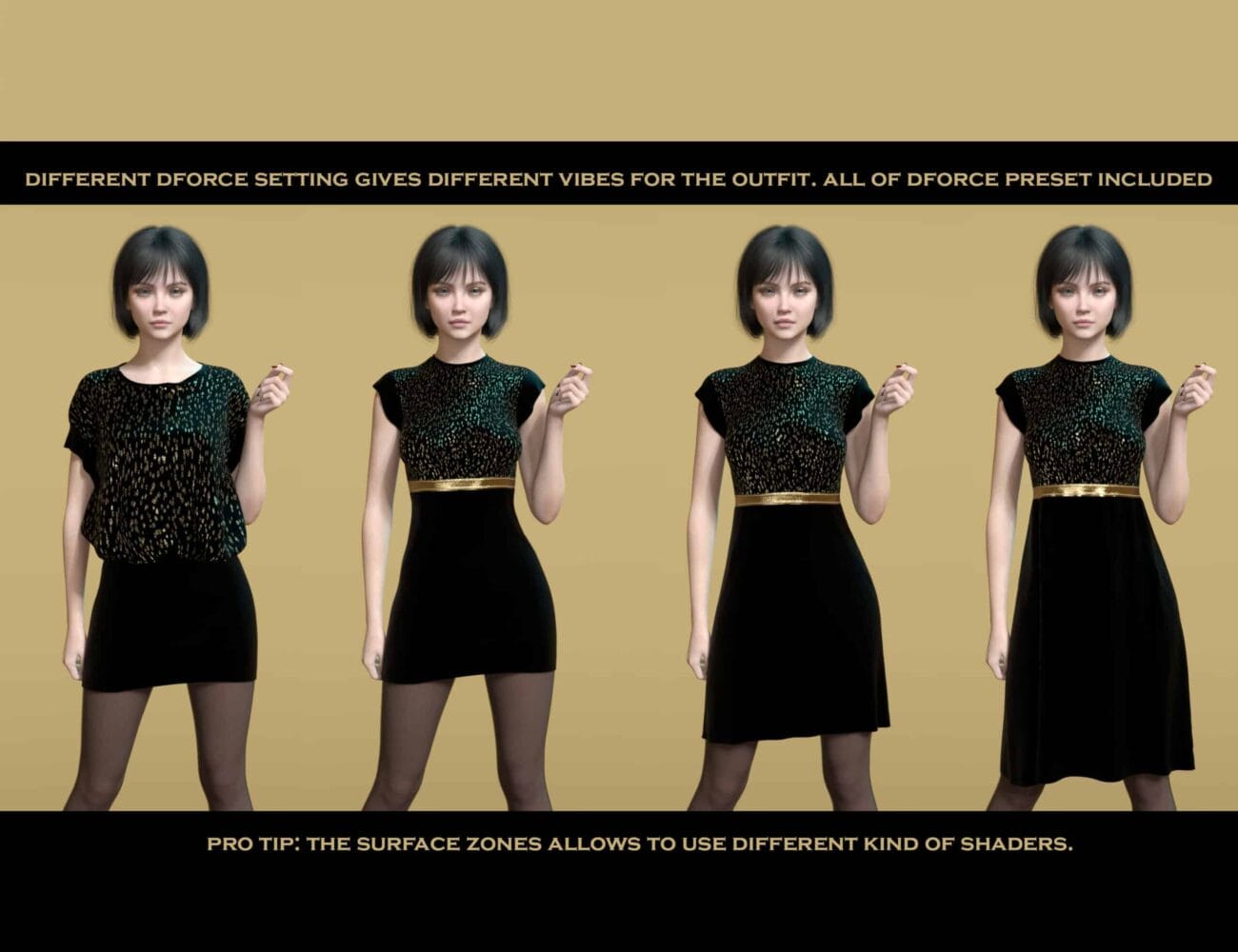
Example: dforce Szamoca outfit – different dforce settings, different styles
Running Your First dForce Simulation: Step by Step
The process below works for any standard dForce-enabled garment from the DAZ store. If a garment is dForce-enabled, it already has the dForce modifier and simulation properties set by the vendor. You are adjusting and running, not building from scratch.
The simulation workflow
- Pose your character. Set the final pose you want to render. dForce will simulate from the garment’s initial position into this pose.
- Check the Timeline pane. Go to Window → Panes → Timeline if it is not already visible. Set your simulation range. A typical still render simulation might run from frame 0 to frame 60 or 90 — enough for the cloth to settle fully.
- Open Simulation Settings. Go to Window → Panes → Simulation Settings. Check the collision items list to confirm your figure is listed as a collision object. If it is not, add it.
- Run the simulation. Go to Simulation → Run Simulation (or use the play button in the Simulation Settings pane). DAZ Studio will step through the timeline and settle the garment. This may take a few seconds to several minutes depending on the garment’s polygon count and your hardware.
- Check the result. Rotate the viewport and look for clipping (clothing through the figure’s surface), exploded geometry (a common failure mode where the garment flies apart), or unsettled fabric (still oscillating at the end of the simulation). Each of these points to a specific fix — see the troubleshooting section below.
- Bake or render. If the result looks correct, render directly. The simulated pose is what Iray will render. If you need to make further adjustments to the scene (lighting, camera, additional characters), the simulation result is held in memory until you reset it or close the scene.
Before you run: the settings that prevent most failures
Before running any simulation, check three things. First, confirm the simulation start frame is set to 0 or 1 and the garment is in its default unworn state at that frame — if the garment is already morphed into the pose at frame 0, the simulation has nothing to transition from and the result is often wrong. Second, confirm that Collision Offset is set appropriately for your figure’s body morphs — the default works for most standard figures but fails on significantly modified proportions. Third, check that the Timeline end frame gives enough settle time — a long skirt or a heavy cloak may need 90 to 120 frames to settle completely, not the default 30 or 60.
When the Simulation Explodes: A Systematic Fix
The garment explosion is the dForce failure mode that makes beginners quit. One moment you have a character in a pose, you hit Run Simulation, and thirty seconds later you have a geometry catastrophe — fabric shredded across the scene, vertices a thousand units from where they started, or a solid tangled mass where the dress used to be. It looks like a software bug. It is almost never a software bug. It is a physics solver being asked to do something it cannot resolve in the time and geometry conditions you have given it. Here is how to work through it systematically rather than adjusting random settings until something changes.
Why the solver explodes in the first place
The dForce solver advances through time in discrete steps. At each step it calculates where every vertex of the garment should move based on the forces acting on it. If a vertex moves far enough in one step to intersect the collision mesh — the figure’s surface — the solver detects the collision and applies a corrective force to push it back out. The problem: if the collision is detected too late because the step was too large, or the garment is already partially inside the figure’s geometry at the start of the simulation, the corrective force overcorrects, launching the vertex in the opposite direction at high velocity. That high-velocity vertex collides with adjacent vertices, which overcorrect in turn, and within a few simulation frames the whole thing has blown apart. This cascade is what an explosion is. Understanding this mechanism tells you exactly where the fixes come from: you either reduce the step size by increasing substeps, give the solver more time to detect collisions before they compound by using a longer timeline, or increase the collision detection distance so the solver catches the problem before it is already inside the mesh.
The fix sequence, in order
Work through these one at a time, re-running the simulation after each change. Do not adjust multiple settings simultaneously — you will not know which one fixed it.
Step 1: Extend the timeline by 30 frames. This resolves a large percentage of explosions at zero cost. A simulation that runs to frame 60 gives the cloth 60 steps to transition from the initial to the final pose. Running to 90 or 120 gives it more time to settle gradually, which reduces the peak velocity of any given vertex at any given step. Long skirts, heavy cloaks, and any garment with large panels of loose fabric need more frames than short or tight clothing. If the explosion happens in the first 10 to 20 frames, the garment is having a violent initial transition rather than failing at the settle stage — meaning the starting pose and the initial garment state are in conflict. Go to step 3 if this is the case. A rough rule: if a garment takes longer than 3 seconds to settle when you shake it in real life, it probably needs more than 60 frames in dForce.
Step 2: Increase Collision Offset to 0.015 or 0.02. The default of 0.01 tells the solver to start pushing the fabric away when it gets within 1 centimetre of the figure’s surface. On standard figures this is sufficient. On figures with extreme morphs — large breast morphs, heavy body morphs, anything that creates significant concavity in the figure’s geometry — 0.01 is not enough to catch the garment before it intersects. Increasing to 0.015 or 0.02 gives the solver more buffer distance. The garment will sit slightly further from the skin in tight areas, but the explosion stops. Reduce the offset incrementally from 0.015 downward afterward if you need closer contact.
Step 3: Increase Simulation Substeps from 1 to 2. This is in the Simulation Settings pane under the advanced parameters. Substeps controls how many intermediate calculations the solver performs per frame. At 1 substep (default), the solver moves each vertex one full step per frame and checks for collisions at the end. At 2 substeps it makes two half-steps and checks twice per frame — dramatically reducing the chance that a fast-moving vertex passes entirely through the collision mesh without being detected. The trade-off is simulation time: 2 substeps roughly doubles it. For most problem simulations, going from 1 to 2 resolves the explosion. Only go to 3 or 4 if the problem persists at 2.
Step 4: Set the garment’s SubD Simulation level to 0. Open the Parameters pane for the clothing item and find Mesh Resolution. If Simulation Level is at 2 or higher, the garment is simulating with a very high polygon count, which makes the solver more likely to encounter instability on complex geometry and significantly increases simulation time. Set Simulation Level to 0. Render Level can stay wherever you need it. The simulation does not need render-quality geometry — it needs geometry clean enough for the physics to resolve.
Step 5: Temporarily raise Stiffness to 0.3 as a diagnostic. Very low Stiffness values (below 0.1) can make garments self-destruct under gravity because the fabric has essentially no resistance to deformation. If the explosion stops when you raise Stiffness to 0.3, the problem is the combination of low stiffness with another variable — Collision Offset too low, or timeline too short. Fix those, then bring Stiffness back down to your target value.
Step 6: Check the garment’s state at frame 0. If the garment is already intersecting the figure’s geometry before the simulation starts — visible as clipping in the static viewport — the solver begins with an impossible collision state and fails immediately. Adjust the pose to reduce intersection, or enable Restore Shape at Start of Simulation in the Simulation Settings pane. This forces the garment back to its unworn shape before each run, which prevents failed previous simulations from corrupting the starting state.
The Most Common dForce Problems and Their Fixes
dForce failures fall into a small number of recognisable categories. Knowing which symptom points to which cause saves enormous amounts of time when things go wrong.
Garment explodes. The simulation fails catastrophically — the geometry flies apart or collapses into a tangled mass. This is almost always caused by the garment’s vertices moving too fast relative to the collision mesh, overwhelming the solver. The three causes: simulation timeline too short (not enough frames for the cloth to settle gradually), Stiffness too low for the garment type (the fabric collapses under its own weight), or Collision Offset too low (the garment intersects the figure’s surface and the solver over-corrects). Try increasing the timeline length first, then adjust Collision Offset upward slightly.
Waistband or collar slides down. The garment drifts away from its attachment point during simulation. The weight map on the attachment area is either missing or set too high — the attachment point is simulating when it should be static. Paint 0.0 weight on the waistband, collar, and any other anchored area and re-run the simulation.
Clothing clips through the figure. The simulated fabric passes through the character’s skin in areas. Collision Offset is too low for the figure’s geometry. Increase it slightly. If the clipping is in a specific area (the chest, the hip, the shoulder), that area of the figure’s collision mesh may be concave or complex in a way that the solver is not resolving correctly — try increasing Collision Offset to 0.015 to 0.02 and re-running.
Simulation takes very long or freezes. The garment has too many polygons for the collision settings you are using. Check whether the garment has subdivision levels active — simulating at SubD 2 or 3 on a complex garment can be extremely slow. Set the garment’s SubD Simulation level to 0 or 1 and let the render SubD be higher. The simulation does not need render-quality geometry to produce accurate results.
Fabric looks stiff and unconvincing. Stiffness is too high for the fabric type you are trying to simulate. Reduce it in increments of 0.1 and re-run. If the fabric type is genuinely structured (leather, stiff canvas), the stiffness may be correct but the garment lacks enough settle time — extend the timeline and re-run.
dForce Starting Parameters by Fabric Type
| Fabric Type | Stiffness | Dampening | Buckling Stiffness | Collision Offset | Typical Use |
|---|---|---|---|---|---|
| Thin silk / chiffon | 0.05 – 0.15 | 0.15 – 0.25 | 0.05 – 0.1 | 0.008 – 0.012 | Evening dresses, scarves, veils |
| Light cotton / linen | 0.2 – 0.35 | 0.2 – 0.3 | 0.1 – 0.2 | 0.010 – 0.015 | T-shirts, summer dresses, light shirts |
| Medium-weight fabric | 0.35 – 0.55 | 0.25 – 0.35 | 0.2 – 0.4 | 0.010 – 0.015 | Jeans, casual trousers, knit jumpers |
| Heavy cotton / denim | 0.5 – 0.7 | 0.3 – 0.4 | 0.35 – 0.5 | 0.012 – 0.018 | Heavy jeans, thick shirts, workwear |
| Structured fabric (wool coat) | 0.6 – 0.8 | 0.35 – 0.45 | 0.5 – 0.7 | 0.015 – 0.02 | Coats, blazers, structured skirts |
| Leather / stiff canvas | 0.75 – 0.95 | 0.4 – 0.5 | 0.6 – 0.85 | 0.015 – 0.025 | Jackets, bags, fantasy armour bases |
| Fantasy / non-physical | 0.1 – 0.3 | 0.1 – 0.2 | 0.05 – 0.15 | 0.010 – 0.015 | Cloaks, fantasy robes, ethereal fabric |
Using dForce on Non-dForce Clothing
Not every garment in the DAZ store is dForce-enabled. Many older items, or items built for static use, have no dForce modifier at all. You can add dForce to any clothing item manually, but the results vary significantly depending on the garment’s geometry and how it was constructed. The process: select the clothing item, go to Edit → Object → Geometry → Add dForce Modifier: Dynamic Surface. This creates a dForce modifier with default parameters that were not calibrated for that specific garment. From there, you set the simulation parameters from the starting values in the table above, paint weight maps on attachment points, and run a test simulation.
The most common issue with manually added dForce on static garments is that the garment was not built with simulation in mind — the geometry may have non-manifold edges, internal faces, or very uneven polygon distribution that causes the solver to behave erratically. If a manually shelled garment explodes on the first run despite correct settings, the geometry is likely the cause rather than the parameters. In these cases, increasing the Simulation Substeps value in the Simulation Settings can help the solver handle difficult geometry — setting it to 3 or 4 (default is 1) gives the solver more intermediate steps per frame, which reduces the chance of runaway vertex velocities. For the G9-specific parameter deep dive on dForce, including collision offset recommendations for specific morph types, the G9 technical settings guide covers those in more detail.
Frequently Asked Questions About dForce in DAZ Studio
Does dForce work on all DAZ Studio clothing?
No. A garment needs a dForce modifier to participate in simulation. Clothing sold as “dForce ready” or “dForce enabled” in the DAZ store includes the modifier and pre-configured simulation properties. Static clothing items do not include it, but you can add a dForce modifier manually. The results depend on the garment’s underlying geometry — well-constructed clothing with clean polygon flow simulates reliably, while older or more complex static garments can produce unpredictable results when a modifier is added manually.
Why does my dForce simulation explode every time?
The most common causes in order: the simulation timeline is too short and the garment cannot settle gradually, the Collision Offset is too low and the garment is intersecting the figure’s surface which causes the solver to over-correct, or the garment’s SubD level during simulation is too high making the simulation unstable. Try extending the timeline by 30 frames, increasing Collision Offset by 0.005, and setting the simulation SubD level to 0. Run again and see which change stops the explosion.
Can I use dForce for hair simulation?
Yes. DAZ Studio supports dForce on strand-based hair and hair cards. The logic is the same as cloth — set weight maps, set timeline, run, check for clipping — but hair uses a dynamic strand system rather than a surface mesh. Hair-specific parameters like Strand Stiffness and Root Stiffness replace some of the standard cloth parameters. Hair tends to be more sensitive to Stiffness and Dampening values than clothing, so start conservative and adjust in small increments.
How do I stop the waistband from sliding down during simulation?
The weight map on the waistband needs to be set to 0.0. In DAZ Studio, select the clothing item and open the Weight Map pane. Find the dForce Influence Weights map, pick the brush tool, set the value to 0.0, and paint the waistband, collar, or any other area that should be anchored to the figure. These areas will not move during simulation regardless of what the rest of the garment does. If you cannot find the Weight Map pane, go to Window, then Panes, then Weight Map to add it to your interface.
Does dForce simulation slow down the render?
No. dForce is a pre-render process. Once the clothing settles, the geometry is fixed. Iray renders it like any other static mesh. The only indirect effect: complex simulated folds may need more samples to resolve cleanly in high-specular fabric areas — but that is a material question, not a simulation one.
Can I run dForce on a scene with multiple characters?
Yes. Each garment simulates against its own character as the collision object. Run each garment separately unless clothing items need to physically interact — two characters under a shared blanket, one character’s cloak colliding with another’s body. Shared simulation is slower and more complex. For most portrait and group scenes, independent simulation per garment is correct.
Why does the simulation look correct at the end but wrong in the final render?
The simulation result is stored at the current frame. If you move the timeline playhead after the simulation runs, or if you re-pose the character after simulating without resetting the simulation first, the render may use the wrong frame’s geometry. Confirm that the timeline playhead is at the end frame of the simulation (the frame where the clothing is fully settled) before rendering. If the simulation was set to run to frame 90, make sure the playhead is at frame 90 before you render.
Is there a way to keep some parts of a garment static while simulating others?
Yes — that is exactly what weight maps are for. Weight maps let you control simulation participation on a per-vertex basis. Setting vertices to 0.0 excludes them from simulation completely. You can, for example, simulate only the lower half of a long skirt while the bodice remains completely static, by painting 0.0 on the bodice vertices and 1.0 on the skirt body. Transition zones at the join between static and dynamic areas should use intermediate values of 0.3 to 0.5 to avoid a sharp visible boundary between simulated and unsimulated geometry.
If you are working through a dForce setup and something is not resolving cleanly despite adjusting the obvious settings, the problem is often in the interaction between two or three variables rather than one. If you want to share your scene setup and talk through what might be causing it, we are happy to dig into it — these kinds of combined-variable problems are usually fast to spot once you can see the actual simulation output and the parameter state together. For artists who want a wider collection of dForce-enabled garments to work with, the store catalog includes clothing specifically selected for clean simulation behaviour across a range of garment types.
Further Reading and Related Resources
- G9 Technical Settings: dForce, SubD, Iray Skin Shader Values — dForce collision offset and SubD simulation settings for Genesis 9 (3D Shards Blog)
- DAZ Studio Iray Settings Guide: Every Parameter Explained — render settings that affect simulated clothing output (3D Shards Blog)
- How to Switch From Genesis 8 to Genesis 9 Without Losing Your Library — dForce conversion considerations in the migration guide (3D Shards Blog)
- dForce Forum for this article