This is my small tool what i make materials / hiearchial materials. Enjoy.
DUF/HMAT Material Series Builder
DUF/HMAT Material Series Builder creates a series of DAZ Studio material presets from one source preset by switching numbered texture folders.
For example, if your source preset uses:
/Runtime/Textures/Vendor/Product/1/1001_Base_color.jpg
and your content folder also contains:
/Runtime/Textures/Vendor/Product/2/ /Runtime/Textures/Vendor/Product/3/ /Runtime/Textures/Vendor/Product/4/
the tool can create matching material presets for folders 2, 3, and 4.
What It Supports
- DAZ Studio .duf material presets
- DAZ Studio .hmat hierarchical material presets
- Plain text DUF/HMAT files
- Gzipped DUF/HMAT files
- Drag-and-drop source preset selection
- Optional custom output folder
- Optional overwrite of existing files
- Automatic opacity and metalness map detection
- Fallback to the source color, roughness, and normal maps when a target folder is missing those files
- Surface-aware map replacement for presets that use multiple texture families in one folder
- DAZ image library ID preservation to avoid duplicate ID warnings
Where To Find The App
The executable is:
dist/DUF_HMAT_Material_Series_Builder.exe
You can run it by double-clicking it.
The DAZ Studio launcher script is:
DUF_HMAT_Material_Series_Builder_DAZ.dsa
There is also a copy next to the executable:
dist/DUF_HMAT_Material_Series_Builder_DAZ.dsa
Basic Use
- Open DUF_HMAT_Material_Series_Builder.exe.
- Drag a .duf or .hmat material preset into the drop area.
- Leave the output folder on the default setting if you want the new presets saved next to the source file.
- Choose a custom output folder only if you want the new presets saved somewhere else.
- Enable Overwrite existing files only if you want existing generated presets replaced.
- Click Generate Materials.
DAZ Studio Use
You can run the DAZ launcher script directly from DAZ Studio:
DUF_HMAT_Material_Series_Builder_DAZ.dsa
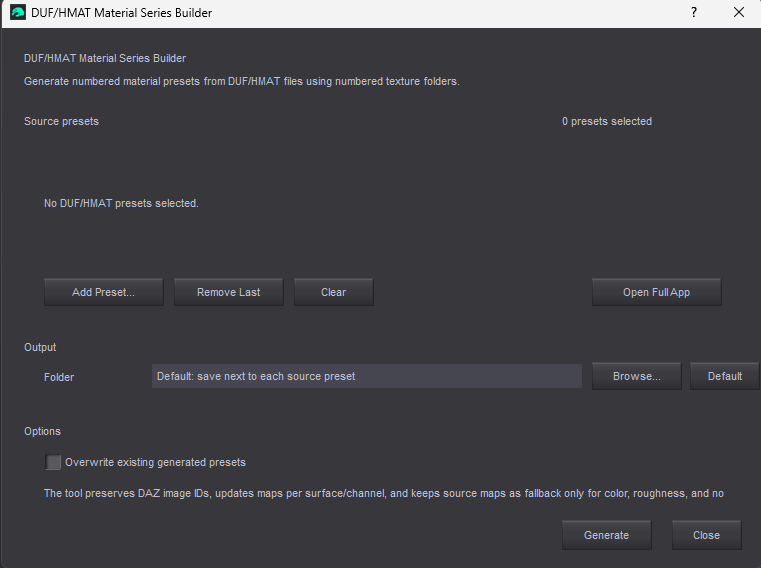
The DAZ script opens a single setup screen instead of asking a chain of questions.
In that screen you can:
- Add one or more .duf or .hmat presets.
- See the selected preset list.
- Remove the last selected preset.
- Clear the selection.
- Choose a custom output folder.
- Return the output folder to the default behavior.
- Enable or disable overwrite.
- Start generation with the Generate button.
- Open the full drag-and-drop app if needed.
The default output behavior is the same as the desktop app: generated presets are saved next to each source preset unless you choose a custom output folder.
Drag-And-Drop Use
You can drag a .duf or .hmat file directly into the app window.
You can also drag a preset file onto the executable itself. In that case, the app opens with the source preset already selected.
Drag-and-drop belongs to the desktop executable. The DAZ Studio launcher uses DAZ-native buttons and file dialogs.
Output Naming
The tool keeps the original filename pattern and replaces the source number with each target texture folder number.
Example:
Urban Leggings 1.duf
becomes:
Urban Leggings 2.duf Urban Leggings 3.duf Urban Leggings 4.duf
For hierarchical material presets:
My Outfit 1.hmat
becomes:
My Outfit 2.hmat My Outfit 3.hmat My Outfit 4.hmat
If the source filename does not contain the source number, the tool appends the target number to the name.
Texture Folder Requirements
The source preset must reference textures in a numbered folder under /Runtime/Textures/.
Expected pattern:
/Runtime/Textures/Some/Texture/Folder/1/texture_file.jpg
The next folders must exist next to it:
/Runtime/Textures/Some/Texture/Folder/2/ /Runtime/Textures/Some/Texture/Folder/3/ /Runtime/Textures/Some/Texture/Folder/4/
The tool starts with the number used by the source preset and continues upward until the next numbered folder no longer exists.
Example:
If the source uses folder 1, and folders 2, 3, 4, and 5 exist, the app creates presets for 2 through 5.
If folder 6 does not exist, it stops there.
Multi-Surface Presets
The app supports presets where several surfaces use different texture families inside the same numbered texture folder.
Example:
/Runtime/Textures/Vendor/Product/1/jacket_Base_color.jpg /Runtime/Textures/Vendor/Product/1/jacket_Roughness.jpg /Runtime/Textures/Vendor/Product/1/shirt_Base_color.jpg /Runtime/Textures/Vendor/Product/1/shirt_Roughness.jpg /Runtime/Textures/Vendor/Product/1/pants_Base_color.jpg /Runtime/Textures/Vendor/Product/1/pants_Roughness.jpg
When generating preset 2, the app keeps each surface connected to its own matching texture family:
jacket surfaces -> jacket_* maps shirt surfaces -> shirt_* maps pants surfaces -> pants_* maps
It does not treat all base color maps as one shared global color map.
Default Output Location
By default, generated presets are saved next to the source preset.
Example source:
D:\My Library\People\Genesis 9\Clothing\Vendor\Product\Materials\Product 1.duf
Default output:
D:\My Library\People\Genesis 9\Clothing\Vendor\Product\Materials\Product 2.duf D:\My Library\People\Genesis 9\Clothing\Vendor\Product\Materials\Product 3.duf
Custom Output Folder
Use Choose next to the Output field if you want the generated presets saved somewhere else.
The generated files keep the same names, but they are written into the selected folder.
Use Default to return to saving next to the source preset.
Overwrite Existing Files
By default, the app skips files that already exist.
Enable Overwrite existing files if you want the app to replace existing generated presets.
How It Works
The app reads the source .duf or .hmat file and searches for texture references like:
/Runtime/Textures/.../1/...
For each next existing numbered texture folder, it creates a copy of the preset and changes only the matching texture folder number.
It also checks which texture maps actually exist in each target folder:
- Base color, roughness, and normal maps use the target folder file when it exists.
- If a target folder is missing base color, roughness, or normal, the app keeps using the source folder’s matching file.
- Opacity maps are added only when the target folder contains an opacity, alpha, cutout, or transparency map.
- Metalness maps are added only when the target folder contains a metalness, metallic, or metal map.
- Opacity and metalness never fall back to the source folder.
- Existing surface/channel assignments are preserved. A jacket surface that used jacket_Base_color.jpg will look for jacket_Base_color.jpg in the target folder, not a random other base color file.
It also updates references to the preset filename inside the file, so the generated preset identifies itself with its new filename.
Duplicate Image IDs
DAZ Studio requires image library IDs to be unique inside a preset. Some presets solve this by using IDs such as:
cipo_Base_color.jpg-25 cipo_Base_color.jpg-12
even when both entries point to a file with the same visible filename.
The app preserves existing image library IDs while updating the texture URL. This helps avoid DAZ duplicate ID warnings and keeps the original preset structure intact.
When the app adds a new optional opacity or metalness image entry, it generates a unique image ID instead of reusing an existing one.
FAQ
Does it work with HMAT files?
Yes. .hmat hierarchical material presets are supported. The output files keep the .hmat extension.
What is an HMAT file?
An .hmat file is a DAZ Studio hierarchical material preset. It is still DUF-format data, but it is meant to apply materials through a hierarchy, such as an outfit or figure setup, instead of acting only like a simple material preset.
Does it change geometry, morphs, rigging, or simulation settings?
No. The tool only changes matching numbered texture folder references and updates the preset filename references. It does not intentionally edit geometry, morphs, rigging, or simulation data.
Does it copy texture files?
No. The numbered texture folders must already exist. The app creates new preset files that point to those folders.
What happens if a target folder is missing roughness or normal maps?
For base color, roughness, and normal only, the app falls back to the source preset’s matching texture file. This keeps generated presets usable even when some texture variants only have a new color map.
What happens if opacity or metalness is missing?
Opacity and metalness are optional and do not use fallback. If the target folder has an opacity map, the app connects it to Cutout Opacity. If it does not, no opacity map is connected. Metalness works the same way for Metallic Weight.
Does it handle presets with jacket, shirt, pants, boots, and accessories all in one file?
Yes. The app updates each existing texture reference independently. If a jacket surface used jacket_Roughness.jpg, it looks for that same file in the target folder. If a boot surface used boots_Roughness.jpg, it looks for the boot file separately.
Why does it keep some maps pointing to folder 1?
That is intentional fallback behavior. If the target folder does not contain the exact matching base color, roughness, or normal map for a surface, the app keeps the original source map instead of guessing another file.
Opacity and metalness do not use this fallback.
What does duplicate image ID mean?
It means two image entries inside the DUF/HMAT file have the same internal id. DAZ can complain about this even if the visible filenames look normal.
The app now preserves existing DAZ image IDs and creates unique IDs for any new optional image entries.
What happens if folder 2 exists but folder 3 does not?
The app creates the preset for folder 2 and then stops. It only continues through consecutive numbered folders.
What if I have folders 1, 2, 4, and 5?
If the source uses folder 1, the app creates the preset for 2 and stops when it sees that 3 is missing. It will not skip over missing numbers.
What if my source uses folder 5 instead of folder 1?
The app starts from the source number. If the preset uses folder 5, it looks for 6, 7, 8, and so on.
What if my preset has several numbered texture groups?
In the GUI, the app automatically uses the most common numbered texture group found in the preset. This covers the usual case where one product material uses one numbered texture variant folder.
Can I use it on encrypted DAZ files?
No. The file must be readable as normal DUF/HMAT data. Encrypted files are not supported.
Can I use it on compressed DUF or HMAT files?
Yes. Gzipped DUF/HMAT files are supported. Generated files are written in the same compression style as the source file.
Why did it create zero files?
Common reasons:
- There is no next numbered texture folder.
- The source preset does not use /Runtime/Textures/…/<number>/… paths.
- The app cannot find the content root folder that contains the referenced Runtime/Textures path.
- Matching output files already exist and overwrite is disabled.
Why does the app skip files?
It skips files when the target output file already exists and Overwrite existing files is not enabled.
Can I save the generated presets outside the DAZ content library?
Yes, but DAZ Studio usually expects presets to live inside a mapped content library. Saving outside the library is useful for checking or staging files, but you will likely want to move them into the product folder afterward.
Will DAZ Studio show the new presets automatically?
If the generated files are saved inside a mapped DAZ content library folder, they should be available through the Content Library after refresh. Smart Content metadata is not created or updated by this tool.
Does this create icons or thumbnails?
No. It creates only the .duf or .hmat preset files.
Can it generate presets from PNG, JPG, or texture files directly?
No. The source must be an existing .duf or .hmat material preset that already points to the first numbered texture folder.
Can I still use command-line mode?
Yes. The executable is mainly designed for the GUI, but the script still supports command-line use.
Example:
DUF_HMAT_Material_Series_Builder.exe --cli "D:\My Library\People\Product\Materials\Product 1.duf"
With a custom output folder:
DUF_HMAT_Material_Series_Builder.exe --cli --output-dir "D:\Output" "D:\My Library\People\Product\Materials\Product 1.hmat"
With overwrite enabled:
DUF_HMAT_Material_Series_Builder.exe --cli --overwrite "D:\My Library\People\Product\Materials\Product 1.duf"
Can I run it from inside DAZ Studio?
Yes. Run DUF_HMAT_Material_Series_Builder_DAZ.dsa from DAZ Studio. It opens a full setup screen where you choose presets, output folder, overwrite, and then click Generate.
Does the DAZ script contain the full generator?
No. The DAZ script is a launcher UI. It calls DUF_HMAT_Material_Series_Builder.exe, which contains the actual generator engine. Keep the .dsa file beside the .exe, or keep the project structure where the script can find the executable inside the dist folder.
Why does the DAZ script have an Open Full App button?
That button opens the standalone drag-and-drop GUI. It is useful if you want the larger desktop interface instead of the DAZ-native launcher panel.
Can the DAZ script process multiple presets at once?
Yes. Use Add Preset… multiple times, then click Generate. The same output and overwrite settings are applied to all selected presets.
Recommended Workflow
- Create and test the first material preset in DAZ Studio.
- Make sure it points to texture folder 1.
- Place matching texture sets into folders 2, 3, 4, and so on.
- Run this app on the first preset.
- Open DAZ Studio and test a few generated presets.
- Add thumbnails or metadata separately if needed.