
This guide is about switching from Genesis 8 to Genesis 9 in a way that does not blow up your workflow in the process. It covers what to audit before you touch anything, which asset categories actually survive conversion, and how to build G9 capability without abandoning the G8 library that took you years to assemble. If you are still weighing whether the switch makes sense at all, start with the Genesis 8 vs Genesis 9 decision guide first.
Step One: Audit Your Genesis 8 Library Before Touching Anything
The most common G9 migration mistake is not a technical one. It is starting too fast. Artists install the Starter Essentials, load a G9 figure, try to put their favourite G8 outfit on it, and immediately hit problems — then spend hours troubleshooting what a 20-minute audit would have predicted. Before you install a single G9 asset, spend time actually cataloguing what you own. Not a number — “I have 800 items” is useless information. You need to know which specific categories of content your renders actually depend on, and which of those have reliable G9 equivalents available right now. The gap between those two lists is your real migration cost.
Characters and Character Morphs
Go through the named characters you actually load, not the ones you bought hoping to use someday. For each one, search the vendor’s store for a G9 version. You will find that popular recent characters often have G9 updates, but anything released before 2022 is a coin flip — many vendors simply moved on without updating their back catalogue. If a character you use regularly has no G9 version, you have three realistic options: wait and see if the vendor releases one, find a G9 character with a similar look, or accept that character stays in your G8 scenes permanently. There is no fourth option that does not involve manual morph work you probably did not sign up for. HD morphs are a separate, harder problem. The HD Morphs system on G9 is architecturally different from G8 — your G8 HD detail sculpts do not carry over, full stop. If you have spent money on HD character packs specifically for portrait detail work, those need to be repurchased in G9 format. Factor that into your budget before you commit.
Clothing and dForce Items
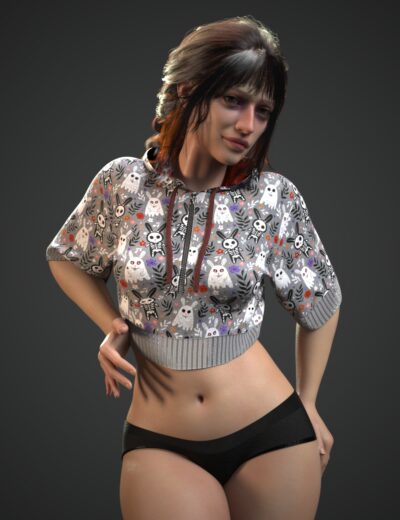
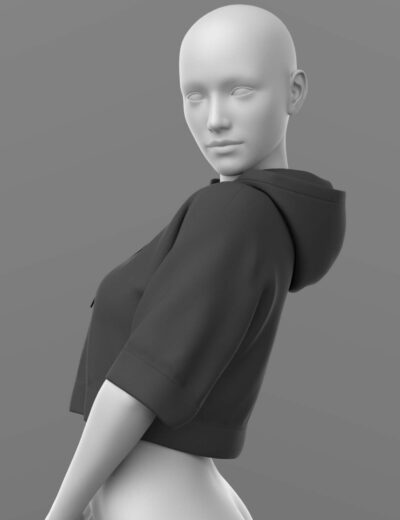
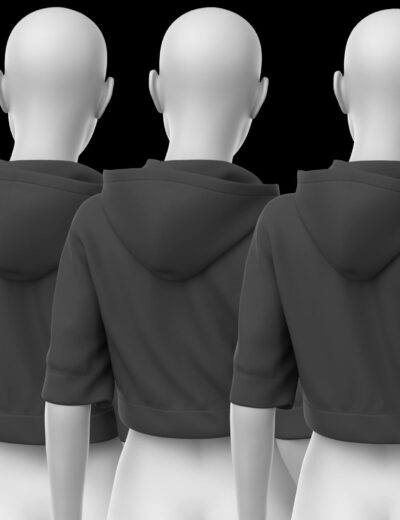
Clothing is where most artists have the most money tied up and the most unpredictable conversion results. Do not think of it as one category — it is at least three. Simple fitted clothing (t-shirts, leggings, basic trousers) converts reasonably well in most cases. Structured and layered outfits — anything with separate belt, buckle, pauldron, or collar geometry — convert unpredictably. Some will look fine. Some will look like the garment was applied by someone with no knowledge of how the underlying figure is shaped. dForce simulation items are their own specific headache: the geometry converts, but all the simulation settings — the stiffness values, the collision parameters, the weight maps you might have tweaked — those are gone. What you get after Auto-Fit is a static mesh that happens to be shaped like your dForce outfit. You will have to rebuild the simulation from scratch if you want it to move again. Test your ten most-used items before you make any larger decisions. That sample will tell you more about how your specific library will behave than any general guidance.
Skin Textures and Material Presets
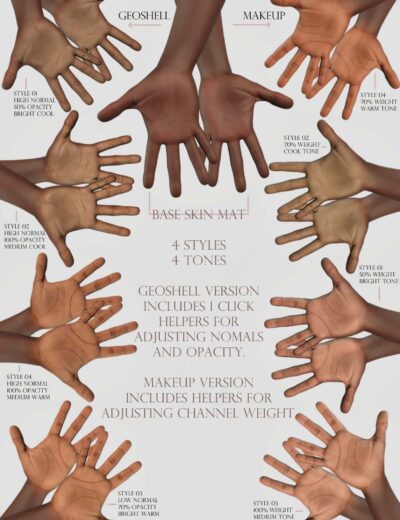
This is the one most migration guides gloss over, and it is the one that catches people most off guard. G8 and G9 use different UV layouts. That means skin textures — which are mapped to the UV — do not transfer between generations without seam mismatches. You will see it first at the neck, where the head and body UVs meet differently on G9. At medium render distance it can be subtle. In a portrait close-up it is unmistakable. No conversion tool fixes this cleanly because it is not a software limitation — it is a geometry difference. If you have invested in premium skin textures for your G8 characters, those specific textures need to be repurchased in natively built G9 versions. There is no workaround that produces equivalent results. This is one of the costs that most “should I switch?” guides avoid spelling out directly — the honest breakdown of what the G8-to-G9 switch actually costs covers it in detail if you want the full picture before committing your budget.
Poses, Expressions, and Animation Files
Body poses transfer with varying success. Neutral and moderate poses usually apply well enough that you can use them as a starting point and adjust from there. The problems show up at the extremes — highly twisted spine poses, complex hand poses, anything that pushed G8’s joint limits. G9’s skeleton is rigged differently, so what looked natural on G8 may produce odd joint angles on G9. Expression packs are a harder stop. G8 expression packs use morph names that simply do not exist on G9’s rig. They will not load, or they will load and do nothing useful. If you use a specific expression pack to maintain character consistency across a series of renders, check now whether the vendor has released a G9 version. If they have not, that character’s expression toolkit needs to be rebuilt or replaced before you can continue the series on G9. This is a detail that only becomes visible when you are mid-project and suddenly cannot match a character’s look from three scenes ago.
What Auto-Fit Actually Does — and Where It Breaks
Auto-Fit is not magic and it is not a one-click solution, but a lot of artists treat it as both. It works by projecting a clothing item’s mesh onto the surface of the target figure — essentially asking “where does each clothing vertex end up if the G9 figure is standing inside this outfit?” It does a reasonable job of preserving the garment’s overall silhouette. What it cannot do is understand what the garment was designed to look like, how the layering was intended to work, or what the dForce simulation was configured to do. Those things have to come from you, after the conversion, if they matter to your render.
Where Conversion Works Reliably
T-shirts, fitted jeans, leggings, simple bodysuits, basic flat shoes — these convert well. The geometry is simple enough that the projection algorithm does not have much room to introduce distortion. Clothing UVs are garment-specific anyway, not figure-specific, so textures transfer without the UV mismatch problem that skins face. Jewellery, belts, and simple hats convert cleanly in most cases because they have minimal contact with the figure’s surface to begin with. For all of these, Auto-Fit is genuinely useful. You will still want to do a quick preview render and check for obvious problems, but the results are usually good enough to work with immediately or after minor adjustment.
Where Conversion Breaks Down
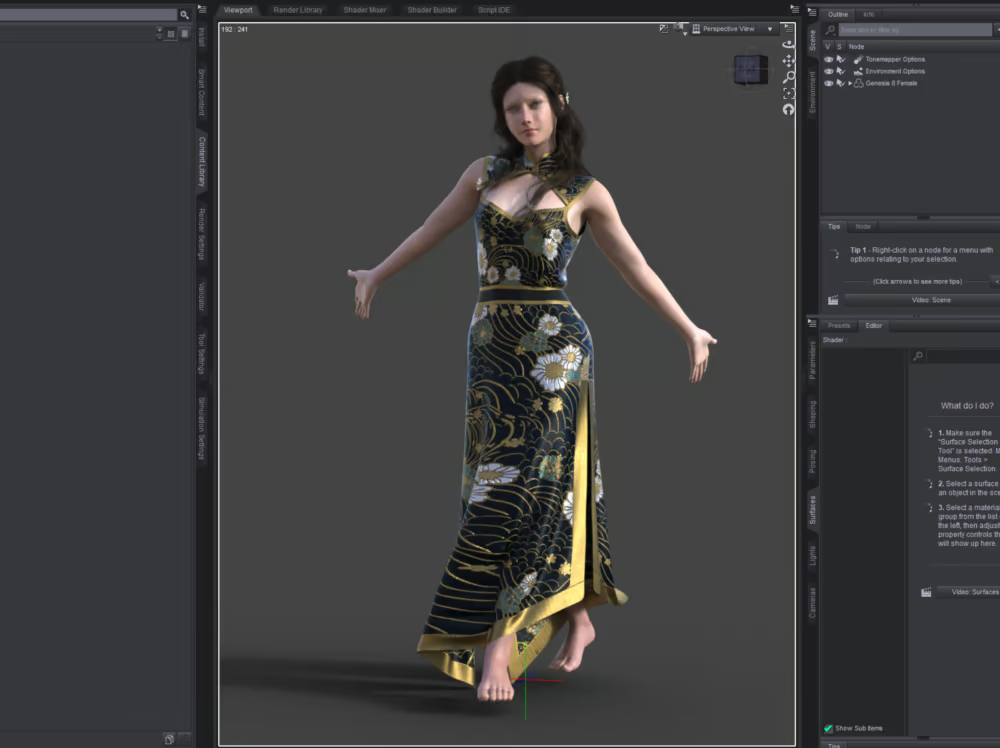
Fantasy armour with layered pauldrons and separate belt geometry — this is where Auto-Fit earns its reputation for inconsistency. The projection algorithm moves each piece independently. It has no idea those pieces were designed to layer in a specific order. You often end up with geometry clipping through the figure’s torso, pieces floating slightly off-surface where they should be flush, and shoulder sections that look like they belong to a different outfit entirely. High boots and heels are reliably difficult. G9’s ankle joint sits differently than G8’s, and footwear is built around exact joint positioning — the conversion result at the ankle area frequently looks distorted regardless of what settings you use. dForce items are the most frustrating outcome: the geometry converts, which makes it look like everything worked, but the simulation is gone. You load what looks like your dForce skirt on a G9 figure and discover it is now a rigid prop. Configuring dForce from scratch is doable, but it is not a five-minute job, and it is not something you will want to do for 40 clothing items.
A Practical Conversion Testing Workflow
Set up a dedicated test scene — a base G9 figure with no morphs, default pose, simple neutral lighting. Load each clothing item you want to test, apply Auto-Fit to Genesis 9, and do a quick low-quality Iray preview. You are not looking for perfection. You are looking for showstoppers: geometry clipping through the torso at the shoulders or hips, severe distortion at the wrists and ankles, texture stretching at seams, proportions that look clearly wrong. Sort each item into three buckets: Pass (usable as-is or with minor tweaks), Needs work (fixable but will take time), and Rebuild needed (not worth salvaging — find or buy a G9 replacement). That third list is your actual migration shopping list. Tackle it in order of how often you use each item, not in order of what you feel most attached to. Before spending money on any G9 replacement, check the product reviews — other artists will have already flagged if a G9 version has its own problems that make it not worth buying.





The Migration Workflow: Phase by Phase
A successful Genesis 8 to Genesis 9 migration is not a single event. It is a phased transition measured in months, not days. The framework below is structured around maintaining your G8 render capability at full capacity throughout the entire process. You do not become less productive during the migration. You build G9 capability alongside your existing workflow until the new platform carries enough of your needs to justify reducing your G8 dependence.
Phase 1 — Parallel Installation and Environment Setup
Install your Genesis 9 Starter Essentials through the DAZ Install Manager. Do not reorganise your existing G8 content library during this phase. The goal is to add G9 capability without disrupting your established G8 workflow. Create a separate DAZ Studio scene template specifically for G9 work — a clean scene with your preferred G9 render settings, a placeholder lighting rig, and a base G9 figure. Save this as your G9 starting point. Keep your existing G8 scene templates completely untouched. At this stage, you are not switching anything. You are building a parallel workspace.
Tools to Install at This Stage
Install the Genesis 9 Starter Essentials pack, the HD Morphs for Genesis 9 if you intend to use HD character detail, and at least one complete G9 character with full skin textures so you have a baseline quality reference. Avoid purchasing large volumes of G9 content at this stage — your conversion test results will tell you where your genuine gaps are, and buying speculatively before you know that is how most migration budgets get wasted.
Phase 2 — Selective Conversion and Gap Identification
Run your conversion testing workflow on the clothing categories identified in your audit. Document your Pass and Rebuild results. Cross-reference your Rebuild list against currently available G9 assets on your preferred marketplaces — browsing the thematic collections filtered by G9 compatibility is a fast way to see what is available by style and content category without manually trawling individual product pages. Some items on your Rebuild list will have direct G9 equivalents available immediately — prioritise purchasing those. Others will have no equivalent yet — place those on a watchlist and check quarterly. During this phase, begin rendering at least one G9 scene per week alongside your regular G8 work. This builds G9 familiarity gradually without creating production pressure.
Priority Order for Rebuilding Your Asset Base
Rebuild in this order, based on which gaps cause the most immediate workflow constraint. First, core skin textures for your primary character types — without these, your G9 characters will look visibly lower quality than your G8 work. Second, the clothing categories you use most frequently in your specific render niche. Third, expression and pose packs. Fourth, environment and prop assets, which are largely generation-agnostic and may not require any rebuilding at all depending on how you use them.




Phase 3 — Hybrid Workflow Stabilisation
By the time you have rebuilt your core skin textures and most-used clothing categories, you will have a G9 toolkit capable of handling a meaningful share of your render work. At this point, begin making active decisions about which new projects go to G9 and which stay on G8. New character designs with no legacy library dependency should default to G9. Existing character series with established G8 assets should stay on G8 until a specific project justification exists to move them. Continue using G8 for any project that benefits from your existing library’s depth — there is no deadline forcing you to abandon it.
Phase 4 — Ecosystem Assessment and Forward Planning
Twelve months into your hybrid workflow, reassess. Which G9 categories still have gaps that are constraining your work? Which G8 assets have you not used in six months — meaning they have effectively been replaced? At this point you have real data rather than speculation. The artists who end up most satisfied with their G9 transition are the ones who let this phase happen naturally rather than forcing a deadline on themselves. The G9 ecosystem is expanding consistently. Gaps that exist today may close within six to twelve months without you having to do anything.
Managing the Skin Texture Gap
The skin texture problem is the most technically uncomfortable aspect of the G8-to-G9 migration and deserves its own section. The UV layout difference between generations means that no cross-generation skin projection method produces results equivalent to a natively built G9 skin at close render distances. For many artists, this is the single biggest quality regression during the transition period, and it is worth addressing directly rather than hoping conversion tools will improve enough to solve it.
A Practical Skin Strategy During Transition
Identify two or three G9 skin texture sets that cover your most common character types — realistic female, realistic male, stylised or fantasy. Purchase those before you begin heavy G9 rendering. Use them as your baseline G9 skin palette while your G8-specific skins remain unavailable on the new platform. This limits your initial G9 character variety but gives you a quality floor that does not embarrass your portfolio work. As more vendors release G9 skins — and they are doing so at an accelerating pace — expand your palette selectively in the categories most relevant to your niche.
Iray Shader Settings: What Changes Between Generations
Genesis 9 skin materials are configured with updated defaults for subsurface scattering, translucency, and specular response that reflect learnings from the G8 era. If you are using a manually configured Iray skin shader rather than a purchased preset, the values that produced your best G8 skin results will not produce equivalent results on G9 without recalibration. Subsurface scattering radius values in particular tend to run too high when G8 values are applied to G9 geometry, producing a waxier skin appearance than intended. Plan to spend time re-tuning your custom shader presets rather than assuming they carry over directly.
Genesis 8 vs Genesis 9 Asset Conversion: Quick Reference
| Asset Category | Auto-Fit Result | Texture Transfer | Recommended Action |
|---|---|---|---|
| Simple fitted clothing | Usually good | Transfers correctly (garment UV) | Test and use; minor adjustment likely |
| Layered / structured outfits | Unpredictable; clipping common | Transfers correctly (garment UV) | Test individually; rebuild priority if clipping |
| dForce simulation clothing | Geometry converts; simulation lost | Transfers correctly | Rebuild simulation parameters manually or repurchase |
| High-heel footwear | Frequently distorted at ankle | Transfers correctly | Repurchase G9 version if available |
| Accessories and jewellery | Generally good | Transfers correctly | Use as-is in most cases |
| Skin texture sets (figure UV) | N/A — UV mismatch issue | Does not transfer cleanly | Repurchase natively built G9 skin sets |
| HD morphs (figure-specific) | Not compatible — different system | N/A | Repurchase G9 HD morph versions |
| Body poses | Transfers with correction needed | N/A | Apply and adjust; extreme poses need most work |
| Facial expressions | Partial — morph names differ | N/A | Repurchase G9 expression packs for character consistency |
| Environment and prop assets | N/A — generation-agnostic | N/A — generation-agnostic | Use as-is with no conversion needed |
Frequently Asked Questions
How long does a realistic Genesis 8 to Genesis 9 migration take for an established library?
For an artist with two or more years of purchased G8 content, expect six to twelve months of hybrid workflow before G9 carries the majority of your render output. This assumes you are actively rebuilding priority categories and doing at least some G9 rendering every week. Artists who try to rush the migration by abandoning G8 immediately typically experience a significant productivity drop for three to six months while their G9 library catches up to what their G8 library could do. Patience and parallelism are more effective than speed.
Should I convert my entire G8 clothing library through Auto-Fit before I start G9 rendering?
No. Converting your entire library speculatively produces a large collection of results ranging from excellent to unusable, with no way to know which is which until you test each item in a real render context. A selective approach — testing the items you actually use most frequently and converting only those that pass your quality threshold — is significantly more efficient. Your full G8 library remains available in DAZ Studio alongside your G9 content indefinitely. You do not need to convert anything you are not actively using.
Do Genesis 9 environment and prop assets look different from Genesis 8 environments?
No — environments and props are generation-agnostic in DAZ Studio. A forest environment, an interior scene, a vehicle, or a prop asset works identically regardless of which figure generation populates it. This is one of the genuine advantages of the migration: your full environment library transfers to G9 with zero conversion work required. The generation distinction is relevant only for figure-dependent assets like clothing, morphs, skin textures, and figure-specific poses.
Is there a way to use my Genesis 8 characters alongside Genesis 9 characters in the same scene?
Yes, fully. DAZ Studio loads both generation figures in the same scene without conflict. You can render a scene containing G8 characters and G9 characters simultaneously. This is one of the most useful features of the hybrid workflow approach — a G9 hero character can share a scene with a crowd of G8 background figures, allowing you to put G9 quality where it matters most while maintaining render efficiency with your existing library.
What is the most expensive part of the migration that most artists do not anticipate?
Skin textures. Most artists account for clothing repurchase costs when they think about migration budgets, because clothing is the most visible asset category. Skin textures are easy to overlook because they seem like they should transfer — they are just image files. The UV mismatch problem means they do not, and high-quality realistic skin sets for G9 are among the more expensive asset categories to rebuild. Budget for skin textures specifically and you will avoid one of the most common migration surprises.
Will Daz3D eventually provide better official migration tools than Auto-Fit?
Probably, incrementally. DAZ has historically improved Auto-Fit and related conversion tools over time as new figure generations mature. Whether those improvements will fully close the conversion quality gap for complex assets is speculative. The structural UV mismatch issue with skin textures is unlikely to be solved by any conversion tool because it is a fundamental difference in how the two figure generations were built. For skin textures specifically, native G9 assets will always produce better results than converted G8 assets regardless of how conversion tools improve.
How do I decide which new G9 assets to buy first?
Use your audit results. The Rebuild-needed items on your conversion test list represent your real content gaps — the categories where your existing library cannot cover G9 render needs at acceptable quality. Prioritise skin textures for your most-used character types first, then the two or three clothing categories you use in the majority of your renders. Avoid purchasing speculatively in categories you use rarely. The G9 catalog is expanding consistently, so categories that are thin today are likely to improve. Spend your migration budget on gaps that are constraining your work right now. Browsing the thematic asset collections filtered by G9 compatibility is one of the faster ways to identify what is available in specific niches without manually searching category by category.
Is the Genesis 8 to Genesis 9 migration worth it for someone who renders primarily for personal projects rather than commercial work?
The answer depends on whether G9’s specific improvements matter to the kind of personal work you make. For portrait-focused artists, even for personal projects, the expression and skin quality improvements in G9 are genuinely satisfying. For scene-based or storytelling renders, the improvement is much less visible and the investment period is harder to justify against the enjoyment of your current workflow. There is no obligation to migrate on any timeline. Genesis 8 will remain a fully productive platform for personal project work for years to come. The migration is worth it when G9 offers you something specific that your current work genuinely needs — not because the calendar says it is time.
If you are at the stage where you have done your audit, run your conversion tests, and you are trying to decide how to structure the actual rebuild phase, that is the conversation where a specific outside perspective tends to add the most value. Tell us where you are in the process and what your biggest gaps look like — the sequencing decisions vary a lot depending on your content niche and how you work. For the full range of G9-native and dual-compatible assets available to start rebuilding your library, the store catalog includes a growing selection across the categories most commonly needed during migration.
Further Reading & Related Resources
- Genesis 8 vs Genesis 9: Which Should DAZ Artists Use? — the decision guide (3D Shards Blog)
- Genesis 8 vs 9: The Truth DAZ Artists Don’t Tell You — the honest cost breakdown (3D Shards Blog)
- Best DAZ Studio Assets for Beginners: What to Download First — 3D Shards Blog
- Top 5 DAZ Studio Tools Every Artist Needs for Success — 3D Shards Blog
- G8 and G9 compatible asset catalog — 3D Shards Store