
Installing DAZ Studio content is usually straightforward, but if you have been using DAZ for any length of time, you have probably encountered more than one way to get products into your library.
The most common methods are DAZ Install Manager (DIM), manual installation, and third-party installation tools such as the DAZ Studio Universal Product Installer.
All three methods ultimately do the same basic job: they place product files into a DAZ Studio content library. The difference is how much of the process is automated, how easy the installation is to manage later, and how much control you want over your library.
This guide explains how each method works, when each one makes sense, and what to watch for when installing DAZ Studio content from different marketplaces.
What Is DAZ Install Manager?
DAZ Install Manager, usually shortened to DIM, is DAZ 3D’s desktop application for downloading and installing compatible content packages.
Instead of manually opening ZIP files and copying folders into your library, DIM reads the package structure and installs the files into the DAZ Studio content directory you have selected.
For users with large DAZ libraries, this can save a considerable amount of time. DIM also keeps track of installed packages, which makes it easier to reinstall or remove content later.
How to Install DAZ Content with DIM
Before installing anything, make sure DIM is configured to use the same DAZ Studio content library that you normally use.
In DAZ Install Manager, check:
Settings → Installation
A common DAZ Studio content library on Windows is:
C:\Users\Public\Documents\My DAZ 3D LibraryHowever, your own library may be stored somewhere else, especially if you use multiple drives or separate third-party content from your main DAZ library.
- Place the DIM-compatible ZIP package in your DIM download folder.
- Open or refresh DAZ Install Manager.
- Locate the product in the Ready to Install section.
- Select the product.
- Click Install.
DIM will place the files into the correct folders automatically.
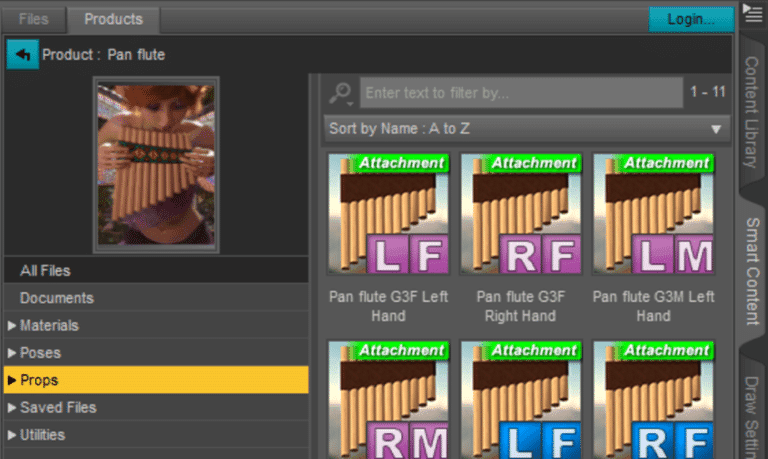
After installation, the product should be available in DAZ Studio through the appropriate Content Library location. If the package includes compatible metadata, it may also appear in Smart Content.
Installing 3DShards Products with DIM
All products sold on 3DShards are DIM-install friendly.
This means 3DShards customers can install compatible product packages through DAZ Install Manager instead of manually extracting files into their content library.
For users who maintain a large DAZ Studio collection, DIM is often the simplest and fastest installation method.
3DShards packages are prepared so that the expected DAZ Studio folder structure is preserved, reducing the risk of accidentally installing a product one folder too deep or placing important files in the wrong location.
A Third Option: DAZ Studio Universal Product Installer
DIM and manual installation are not the only ways to manage third-party DAZ Studio content.
Another option is the
DAZ Studio Universal Product Installer
,
a plugin designed to make installation and library management easier for content downloaded from different marketplaces.
Unlike DIM, which works with packages prepared in DAZ Install Manager format, the Universal Product Installer is designed to work directly with downloaded product archives and handle much of the installation process from inside DAZ Studio.
This can be especially useful if you regularly purchase DAZ Studio content from several different marketplaces and do not want to manually unpack and organize every product.
How to Install Content with Universal Product Installer
Once the plugin is installed in DAZ Studio, the workflow is designed to be straightforward:
- Open the Universal Product Installer from inside DAZ Studio.
- Select the DAZ content library where you want the product installed.
- Select or drag the downloaded product ZIP into the installer.
- Review the selected installation destination.
- Start the installation.
The installer handles the archive and places the content into the appropriate DAZ Studio library structure.
This is particularly useful for users who keep multiple content libraries, for example:
- Official DAZ Store content
- Third-party marketplace content
- Older Genesis content
- Project-specific libraries
- Libraries stored on separate drives
Universal Product Installer and Library Management
One of the main advantages of the Universal Product Installer is that it goes beyond basic file extraction.
Depending on your workflow, the plugin can also help with browsing installed products, managing multiple libraries, organizing third-party content, working with metadata, and keeping large DAZ Studio libraries easier to navigate.
This can become increasingly useful as a library grows. Installing files is usually easy; finding and organizing thousands of assets later is often the bigger challenge.
You can find the plugin here:
DAZ Studio Universal Product Installer
.
Universal Product Installer and Smart Content
The Universal Product Installer can also help integrate third-party content into a more organized DAZ Studio workflow.
This is particularly useful for products purchased outside the official DAZ store, because third-party libraries can become difficult to browse once they grow large.
However, it is important to understand that installing a product correctly and categorizing it correctly in Smart Content are two separate things.
A product can be installed perfectly and still not appear where you expect in Smart Content if metadata is missing, incomplete, or categorized differently.
In those cases, checking the Content Library is usually the first troubleshooting step.
What Is Manual DAZ Studio Installation?
Manual installation means extracting a product ZIP yourself and copying its contents directly into one of your DAZ Studio content libraries.
It sounds more complicated than it really is, but it does require a basic understanding of the DAZ Studio folder structure.
The most important rule is that you normally copy the contents of the Content folder, not the Content folder itself.
A typical DAZ Studio product package may contain folders such as:
dataPeoplePropsRuntimeEnvironmentsDocumentation
These folders belong directly inside your DAZ Studio content library.
For example:
My DAZ 3D Library/data
My DAZ 3D Library/People
My DAZ 3D Library/Runtime
My DAZ 3D Library/Props
How to Install DAZ Content Manually
First, locate the content library that DAZ Studio is using.
A common Windows location is:
C:\Users\Public\Documents\My DAZ 3D LibraryYour library may be somewhere completely different if you changed the default installation settings.
You can check your registered DAZ Studio content directories under:
Edit → Preferences → Content → Content Directory Manager
- Download the product ZIP.
- Extract the ZIP to a temporary location.
- Open the included
Contentfolder, if the package contains one. - Copy the folders inside it.
- Paste them into your DAZ Studio content library.
- Allow folders to merge when your operating system asks.
You are not replacing the existing Runtime, People, or data folders. You are merging additional files into them.
Restarting DAZ Studio is usually not necessary, although refreshing the Content Library can help if the product does not immediately appear.
DIM vs Universal Product Installer vs Manual Installation
The actual DAZ Studio asset files are ultimately placed into a content library regardless of which installation method you use.
The main difference is how much of the process is automated and how much control you want over installation and library organization.
| Feature | DAZ Install Manager | Universal Product Installer | Manual Installation |
|---|---|---|---|
| Installation difficulty | Easy | Easy | Moderate |
| Automatic file placement | Yes | Yes | No |
| Works with third-party content | Yes, if DIM packaged | Yes | Yes |
| Works directly with downloaded ZIPs | DIM-formatted packages | Yes | Yes |
| Multiple libraries | Yes | Yes | Yes |
| Easy uninstall and reinstall | Yes | Good management options | Manual |
| Metadata and organization tools | Package dependent | Extensive | Manual |
| Best for large mixed libraries | Good | Excellent | Less convenient |
| Maximum control over files | Moderate | High | Excellent |
| Best use case | DIM-ready packages | Mixed third-party libraries | Troubleshooting and full manual control |
Does DIM Install Content into Smart Content?
Not exactly.
This is a common source of confusion.
DIM installs the product files. Smart Content is a separate system that relies heavily on metadata and categorization.
A product can be installed correctly and still not appear where you expect in Smart Content.
In that situation, check the Content Library first.
For example, clothing may appear under:
People → Genesis 9 → Clothingwhile props may appear under:
Propsor inside a vendor-specific folder.
If the product is visible there and loads correctly, the installation itself probably worked.
What Is the Runtime Folder?
The Runtime folder is part of the DAZ Studio content structure and has existed since the Poser-compatible days of DAZ content.
Even modern DAZ Studio products may still contain a Runtime folder.
It can include:
- Textures
- Support files
- Poser-format content
- Material resources
Do not move individual files out of Runtime simply because they appear to be buried deep inside the folder structure.
DAZ Studio expects many files to remain in specific relative locations. Changing that structure can break texture references and other dependencies.
What About the Data Folder?
The data folder is particularly important for modern DAZ Studio products.
It can contain geometry information, morph data, UV information, rigging-related data, and other files required for an asset to function correctly.
If a figure, clothing item, or prop appears in the library but produces missing-file errors when loaded, an incorrectly installed data folder is one possible cause.
This is one reason automated installation methods are convenient: the user does not need to manually determine where these files belong.
Can I Use Multiple DAZ Studio Libraries?
Yes.
Many experienced DAZ Studio users separate their libraries instead of storing everything in a single directory.
For example:
My DAZ 3D Library
Third Party Content
Genesis 8 Library
Genesis 9 Library
Projects
Older Content
There is nothing wrong with doing this, provided each directory is properly registered inside DAZ Studio.
DIM can be configured with multiple installation locations, and the Universal Product Installer can also be useful for users who maintain several libraries.
Manual installation gives you the greatest direct control, but it also puts the responsibility for choosing the correct destination entirely on you.
Can I Install Third-Party DAZ Products with DIM?
Yes, provided the store or creator supplies a properly prepared DIM package.
DIM is not limited to products purchased from the official DAZ 3D store.
This is worth clarifying because some users assume that DIM installation automatically means a product must have been purchased directly from DAZ.
It does not.
DIM is an installer that understands the DAZ package structure.
For example, every product available through 3DShards is DIM-install friendly, so users who prefer DIM can install third-party 3DShards products in essentially the same way as other properly prepared DIM packages.
Users who prefer another workflow can also use manual installation or a tool such as the
Universal Product Installer
.
Which DAZ Installation Method Is Best?
There is no single best method for every user.
If the product includes a properly prepared DIM package, DAZ Install Manager remains one of the simplest and most reliable choices. This is why all products sold through 3DShards are supplied in a DIM-friendly format.
If you regularly download content from several marketplaces, the
Universal Product Installer
is worth considering. It reduces much of the manual work involved in dealing with downloaded ZIP archives and also adds library-management and organization tools.
Manual installation is still worth understanding even if you rarely use it.
Knowing how a DAZ Studio content library is structured makes troubleshooting much easier when something goes wrong.
In practice:
- Use DIM when you want a simple and established workflow for DIM-compatible packages.
- Use Universal Product Installer if you manage a large mixed library of third-party content and want installation and organization in one workflow.
- Use manual installation when you want complete control or need to inspect and troubleshoot a package yourself.
All three methods can result in a perfectly working DAZ Studio product. The difference is mainly how much of the installation and organization process you want the software to handle for you.
Frequently Asked Questions
Can DAZ Install Manager install products from other stores?
Yes. DIM can install third-party DAZ Studio products when they are packaged correctly for DIM. All products sold through 3DShards are DIM-install friendly.
Where should I manually install DAZ Studio content?
Install the product into a directory registered as a DAZ Studio content library. Folders such as data, People, Props, and Runtime should normally sit directly inside that library.
Should I copy the Content folder into My DAZ 3D Library?
Usually no. Open the Content folder and copy its contents into your DAZ library.
Copying the Content folder itself can create an incorrect structure such as:
My DAZ 3D Library/Content/People/...when DAZ Studio is expecting:
My DAZ 3D Library/People/...Why does my installed product not appear in Smart Content?
Smart Content depends on metadata and categorization as well as the presence of installed files.
Check the Content Library first. If the product appears there and loads correctly, the product itself is probably installed even if Smart Content does not display it as expected.
Is manual DAZ Studio installation safe?
Yes. Manual installation is completely normal as long as the package structure is preserved and the files are copied into the correct DAZ Studio content library.
Are all 3DShards products compatible with DIM?
Yes. All 3DShards marketplace products are DIM-install friendly.
What is the easiest way to install third-party DAZ Studio content?
If a DIM-compatible package is available, DIM is usually one of the easiest options. For users who regularly install products from several marketplaces, the Universal Product Installer can provide a more unified workflow.
Can I install DAZ Studio content without DIM?
Yes. You can install DAZ content manually or use another compatible installation tool such as the Universal Product Installer.