
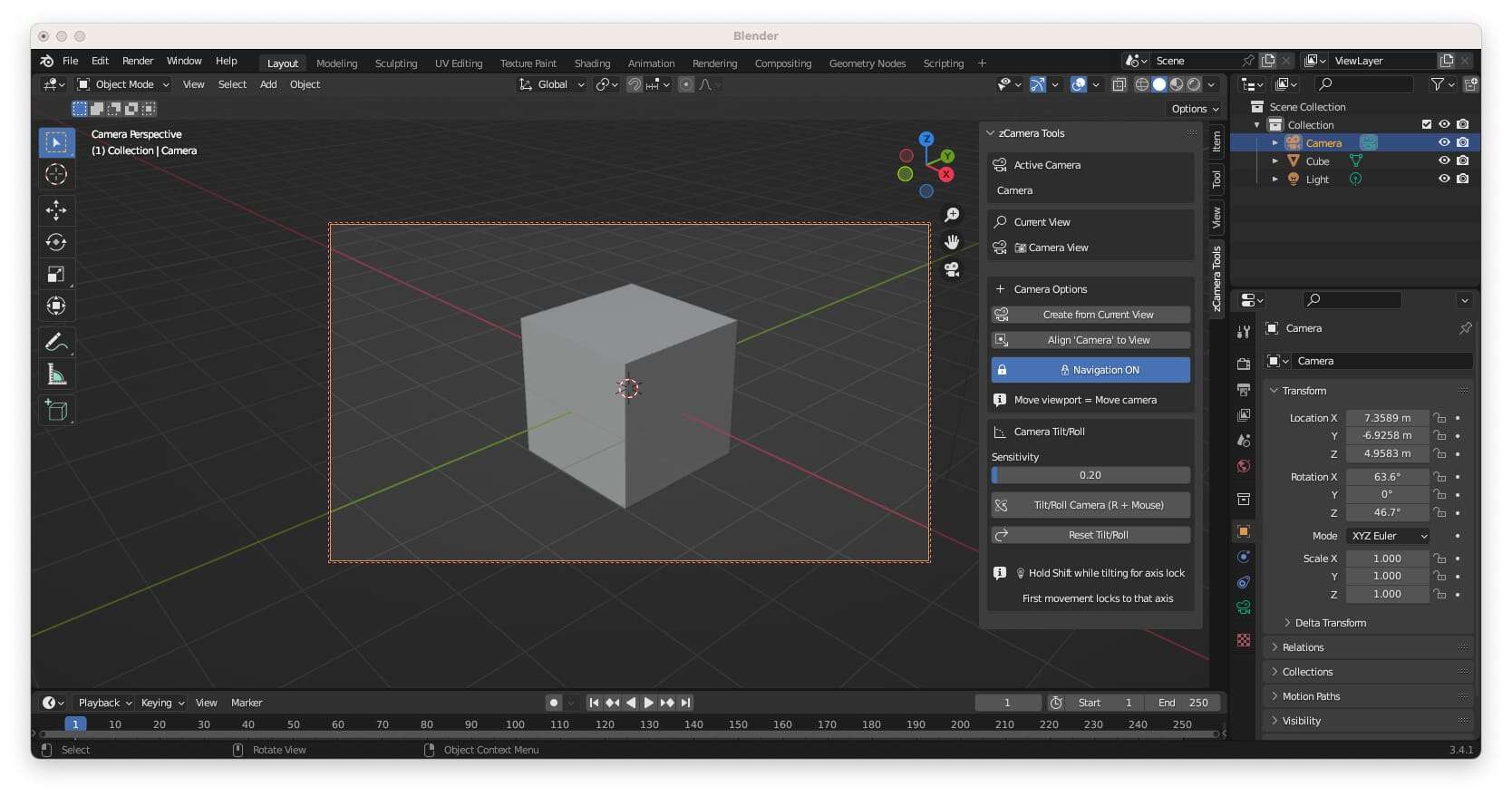
zCamera Tools for Blender3D
0.00 $
- DIM Support
- Great Support
- Fair Prices
- Secure Payments
- Instant Download
Description
—
✨ Features
**Instant Camera Creation**
– Create cameras from your current viewport with one click
– Perfect framing every time – what you see is what you get
– Automatically switches to camera view
– Supports both perspective and orthographic views
**Camera Navigation**
– Lock camera to viewport – move viewport to move camera
– Perfect for cinematographers and artists who prefer viewport-based camera control
– Toggle on/off with a single click or keyboard shortcut
**Cinematic Camera Tilt**
– Smooth camera roll and pitch adjustments
– **Free Tilt Mode:** Move mouse freely for both roll and pitch
– **Axis-Lock Mode:** Hold Shift to lock to horizontal (roll) or vertical (pitch) only
– Adjustable sensitivity slider for precise or dynamic movements
– One-click reset to zero roll while preserving aim direction
⚡ **Quick Camera Alignment**
– Align existing camera to current viewport position
– Fast camera repositioning without creating new cameras
—
## Installation
1. Download the `zcamera_tools.py` file
2. Open Blender
3. Go to **Edit → Preferences → Add-ons**
4. Click **Install…** and select the downloaded file
5. Enable **zCamera Tools** by checking the checkbox
6. Access the addon from the **3D Viewport sidebar** (press `N`)
—
Usage
**Accessing the Panel
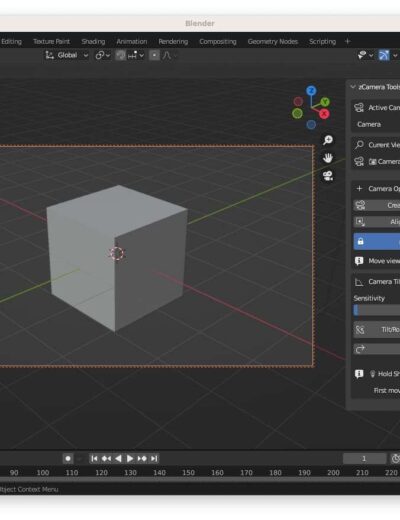
Press `N` in the 3D Viewport to open the sidebar, then navigate to the **Camera Tools** tab.
**Creating a Camera from Viewport
1. Navigate your viewport to the desired camera angle (middle mouse button)
2. Click **”Create from Current View”** or press `Ctrl+Alt+C`
3. A new camera is created matching your exact viewport position
4. Automatically switches to camera view
** Camera Navigation Mode
**What it does:** When enabled, moving your viewport also moves the camera – perfect for intuitive camera positioning!
**How to use:**
1. Create or switch to a camera
2. Click the ** Navigation ON** button or press `Ctrl+Alt+V`
3. Move your viewport normally – the camera moves with it
4. Click again or press `Ctrl+Alt+V` to disable
** Camera Tilt/Roll
**What it does:** Adjust camera roll (Dutch angle) and pitch (up/down tilt) with mouse movement.
**Two Modes:**
** Free Tilt Mode (Default)
– Press `R` and move mouse freely
– Horizontal movement = Roll
– Vertical movement = Pitch
– Perfect for quick, organic adjustments
**Axis-Lock Mode (Hold Shift)
– Press `R` and hold `Shift`
– Move mouse in any direction
– **First movement locks the axis:**
– Move horizontally first → Locks to horizontal (roll only)
– Move vertically first → Locks to vertical (pitch only)
– Perfect for precise, single-axis adjustments
– Release `Shift` to return to free tilt mode
**Pro Tip:** You can press/release Shift while tilting to switch between modes on-the-fly!
**Adjusting Sensitivity:**
– Use the **Tilt Sensitivity** slider (0.1 – 5.0)
– Lower values = slower, more precise
– Higher values = faster, more dynamic
– Default: 0.5
**Resetting Tilt:**
– Click **Reset Tilt/Roll** button or press `Ctrl+Alt+R`
– Removes roll while preserving camera aim direction
**Aligning Camera to View
If you already have a camera but want to reposition it:
1. Navigate viewport to desired position
2. Click **”Align [Camera Name] to View”** or press `Ctrl+Alt+A`
3. Your camera moves to match the viewport
**Quick Camera/Viewport Toggle
– Click **”Toggle Camera/Viewport View”** to switch between camera view and viewport view
– If no camera exists, one is automatically created
—
⌨ Keyboard Shortcuts
| Shortcut | Action |
|———-|——–|
| `Ctrl+Alt+C` | Create camera from current viewport |
| `Ctrl+Alt+V` | Toggle camera navigation mode |
| `Ctrl+Alt+A` | Align camera to current viewport |
| `R` (hold) | Tilt camera (free mode) |
| `R + Shift` (hold) | Tilt camera with axis lock |
| `Ctrl+Alt+R` | Reset camera tilt/roll |
—
Common Workflows
**Creating a Camera Shot
“`
1. Navigate viewport to desired angle
2. Press Ctrl+Alt+C (creates camera)
3. Press Ctrl+Alt+V (enable navigation)
4. Fine-tune camera position by moving viewport
5. Press R + move mouse to add cinematic tilt
6. Press Ctrl+Alt+V (disable navigation)
“`
** Perfect Dutch Angle (Cinematic Roll)
“`
1. Switch to camera view
2. Press R to start tilting
3. Hold Shift
4. Move mouse LEFT or RIGHT first
5. Camera locks to horizontal (roll only)
6. Fine-tune the roll angle
7. Release R when perfect
“`
** Precise Vertical Tilt
“`
1. Switch to camera view
2. Press R to start tilting
3. Hold Shift
4. Move mouse UP or DOWN first
5. Camera locks to vertical (pitch only)
6. Adjust camera tilt up or down
7. Release R when satisfied
“`
** Quick Camera Adjustment
“`
1. Position viewport where you want camera
2. Press Ctrl+Alt+A (align camera to viewport)
3. Done!
“`
—
Troubleshooting
**Problem:** Camera doesn’t match my viewport exactly
– **Solution:** Make sure you’re not in orthographic view when creating a perspective camera (or vice versa)
**Problem:** Tilt isn’t working
– **Solution:** You must be in camera view (press `0` or use the toggle button)
**Problem:** Axis lock isn’t engaging
– **Solution:** Move your mouse at least 10 pixels in one direction while holding Shift
**Problem:** Camera navigation moves the wrong camera
– **Solution:** Make sure the correct camera is set as the active scene camera
**Problem:** Shortcuts aren’t working
– **Solution:** Check Edit → Preferences → Add-ons → zCamera Tools → ensure addon is enabled
—
System Requirements
– **Blender:** 3.6.0 or higher
– **Python:** 3.10+ (included with Blender)
– **Operating System:** Windows, macOS, Linux
Additional information
| License |
|---|
Only logged in customers who have purchased this product may leave a review.
You may also like…

💡 Daz Studio Tip
Enable 'Smoothing Modifier' on low-poly props to remove jagged edges in close-ups.
2 reviews for zCamera Tools for Blender3D